Create a Server Object type
Server Objects run on ck-exec.
Each type of Server Object is described by one data asset of the class UCrowdyServerObjectDefinition. The asset names the variables the server keeps, which of them players may see, and the functions players may call. The SDK reads it at runtime to encode and decode every value, and the type's server code is generated from it, so both sides agree on every name.
Make the asset
In the Content Browser, choose Add, then Crowdy, then Server Object. The new asset is named CSO_NewServerObject; rename it after the type, for example CSO_VillageBeacon, and double-click it. Server Object assets take the prefix CSO_ (Crowdy Server Object), the way Blueprints take BP_; an older asset named DA_ works the same. Add, Miscellaneous, Data Asset, then Crowdy Server Object Definition makes the same asset. It opens in an editor laid out like the Blueprint editor (see The asset editor), with the type's variables and functions in the Server Object panel and whatever you select there in Details.
The village beacon keeps its oil, whether it is lit, and who fed it last; feeding it sends an amount of oil and gets back how much the beacon holds afterwards.
- Add the variables. In the Variables section of the Server Object panel, clear Use Struct in its header if it is ticked, then click +. A new variable is an Integer named
NewVar, and it is selected, so Details shows it. Set its Variable Name toOiland its starting value, under Default Value, to 50. Click + twice more forbLit, a Boolean that starts ticked, andLastFedBy, an Integer64 that starts at 0; change each one's type with Variable Type. - Choose what players see. Each variable has an eye at the end of its row. Leave it open on
OilandbLit: Visible to Players, so players can read and watch them. Click it onLastFedByto close it: Server Only, so it never leaves the server. - Add the function. Click + in the Functions section. The new function,
NewFunction, is selected; set its Name toFeedBeaconand leave Callable By on Players. Click + in the Inputs header, rename the newNewParamtoOil, leave it an Integer and give it the default value 10. Click + in the Outputs header and name that oneOiltoo. - Name the type. Select Type Settings, the first row of the Server Object panel, and Details shows the type's own settings: set Type Name to
village_beacon, the Description, and Readable By.
The panel now reads:
| Server Object panel | The beacon |
|---|---|
| Variables | Oil Integer (open eye), bLit Boolean (open eye), LastFedBy Integer64 (closed eye) |
| Functions | FeedBeacon with (Oil) returns Oil beside it |
and, with Type Settings selected, Details:
| Setting | The beacon's value |
|---|---|
| Type Name | village_beacon |
| Description | Keeps the village beacon's oil and whether it is lit. |
| Readable By | Every Player |
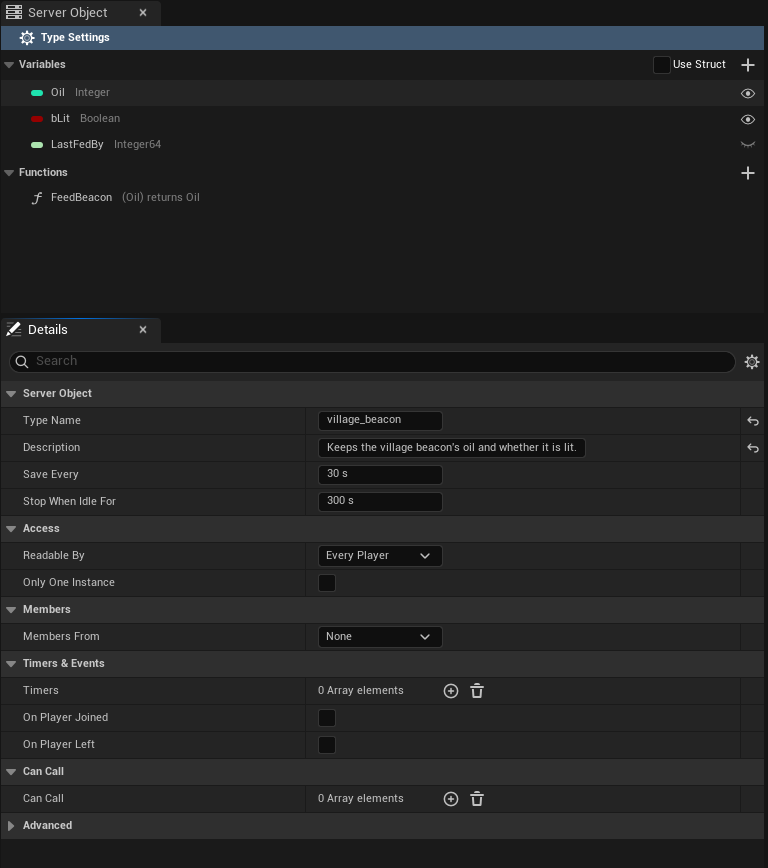
Then pick the asset in the beacon's Beacon Definition slot in the level's Details panel; see Get a Server Object.
Variables, inputs and outputs, or a struct
The variables, and each function's inputs and outputs, can each be added right in the asset, as above, or taken from a USTRUCT of your own. Tick Use Struct in the section's header to take a struct: for the Variables, pick it as State Struct in Details with Type Settings selected; for a function's Inputs or Outputs, the list gives way to an Input Struct or Output Struct picker, where None sends or replies nothing. The beacon's structs:
// VillageBeacon.h
// Everything the server keeps for one village's beacon; only the watched fields ever reach a player.
USTRUCT(BlueprintType)
struct FVillageBeaconState
{
	GENERATED_BODY()
	UPROPERTY() int32 Oil = 50;
	UPROPERTY() bool bLit = true;
	UPROPERTY() int64 LastFedBy = 0;
};

USTRUCT(BlueprintType)
struct FFeedBeaconParams
{
	GENERATED_BODY()
	UPROPERTY() int32 Oil = 10;
};

USTRUCT(BlueprintType)
struct FFeedBeaconReply
{
	GENERATED_BODY()
	UPROPERTY() int32 Oil = 0;
};
With Use Struct ticked, the Server Object panel lists the struct's fields as the variables, each with its type and eye, but they are renamed and retyped in the struct, not in the asset.
Both travel exactly alike, so the server code and the saved data do not care which you chose. The generated server code gives the ones added in the asset the names the structs would have, VillageBeaconState, FeedBeaconParams and FeedBeaconReply, so the beacon's logic.rs is the same either way.
The C++ on the following pages uses these structs. With variables, inputs and outputs added in the asset there is no struct, so C++ reads and sends them by name instead: see Read and follow its variables and Call its functions. Keep a struct when the same values are shared by several types or functions, when you may rename a field and want to keep its saved value with Field Names, or when your C++ uses the struct elsewhere.
The asset editor
Double-click a definition in the Content Browser and it opens in its own editor, laid out like the Blueprint editor and using its words, not as a plain property list. The editor has a toolbar and three tabs.
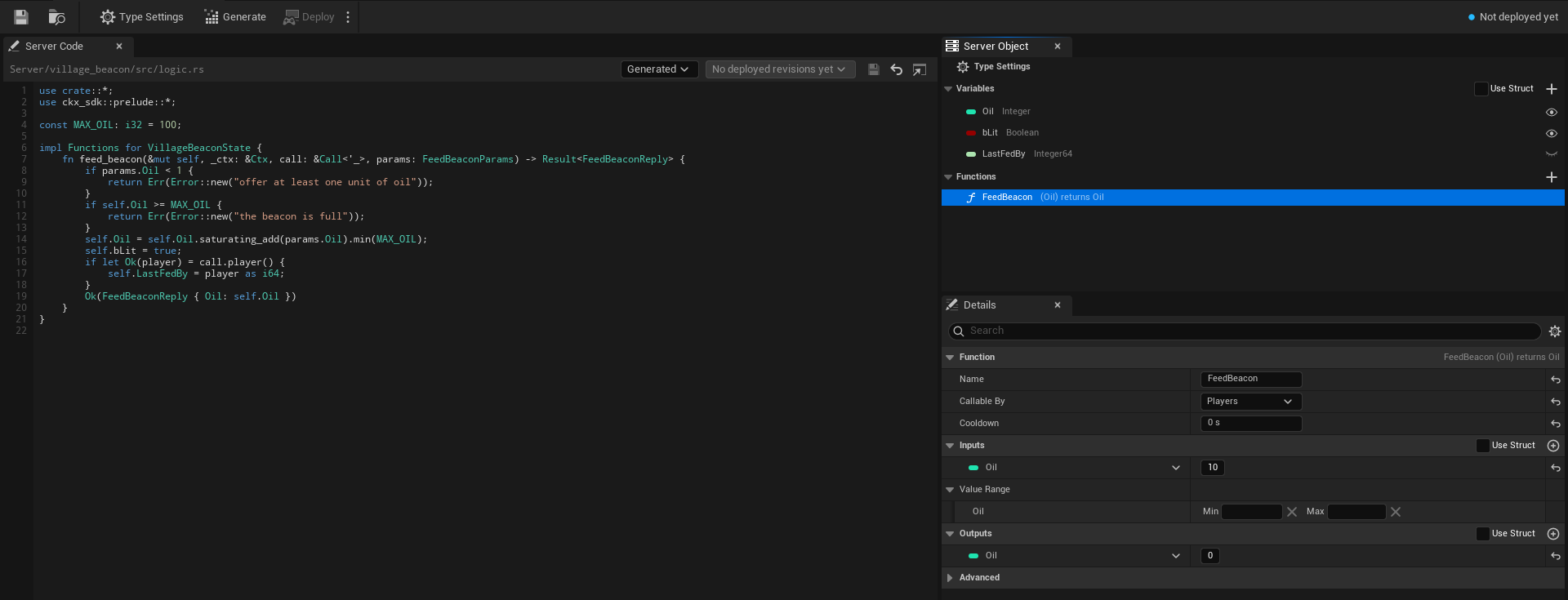
The toolbar
After the usual Save and Browse buttons the toolbar holds:
- Type Settings, a toggle that selects the Type Settings row of the Server Object panel from anywhere, so Details shows the type's own settings.
- Generate writes the type's server code, the same as the Content Browser command. Its tooltip reads "Writes this type's server code under
Server/<Type Name>; your logic file is never replaced". - Deploy builds and deploys every Server Object type in the project together, since a deploy replaces the app's whole version, and asks first. See Server Compute.
- A small arrow beside Deploy opens a menu with two entries. Open Server Compute opens Crowdy Studio on the Server Compute page itself (it opens on Sign In first when nobody is signed in, and shows the page after). Show build output opens a Build Output window with what the last build of this session printed; it is disabled until a build has printed something.
- A status readout at the right: a coloured dot and one line saying where the type stands. Hover it for the reason.
Generate is disabled until the Type Name is valid. Deploy is disabled until the Type Name is valid, while another definition has the same Type Name, while another operation runs, and while nothing in the project has changed since the live version. While a deploy runs, its progress line takes the place of the status readout.
The readout says:
| Readout | Meaning |
|---|---|
| Ready | The server code on disk matches this definition. It is compared with the live version once Server Compute has read it, which needs you signed in to Crowdy Studio. |
| No changes, then "live in version 7" (green dot) | The live version runs this code with these settings. |
| Changed since version 7 (server code, save interval) (yellow dot) | Version 7, the live one, runs something else. The brackets say what: server code, save interval or idle timeout. |
| Not deployed yet (blue dot) | The live version does not run this type. Deploy adds it. |
| Live code unknown, then "app version 7" (yellow dot) | The live version runs code this project has no record of, for example deployed from another copy of the project. |
| Needs generating, Out of date (yellow dot) | The type's server code has to be generated, or generated again; see Write its server logic. |
| Problem: ... (red dot) | The definition fails its checks, or another definition has the same Type Name (see Two definitions with one Type Name). The reason follows the colon. |
The three tabs
- Server Code, the large tab on the left: the path of the Server Functions file, the Code Source choice (Generated or My Own File), the deployed revisions, and the code itself with line numbers, Rust colouring, Save, Revert and an external-editor button. It is described on Write its server logic.
- Server Object, top right, where My Blueprint is in the Blueprint editor: the type's variables and functions.
- Details, bottom right: the settings of whatever is selected in the Server Object panel.
The tabs dock and rearrange like any editor tab, for example to put the code above the rest; the editor remembers the layout.
The Server Object panel
The panel starts with a pinned row, Type Settings, with a gear icon. It is selected when the asset opens, and selecting it shows the type's own settings in Details. Below it are two sections.
- Variables, with a Use Struct check-box and a + button in its header. Each row shows the variable's type as a coloured pill, the way a Blueprint variable does, its name, its type name (Integer, Boolean, String) and an eye. An open eye is Visible to Players: players can read and watch it. A closed eye is Server Only: it never leaves the server. Click the eye to switch it. With Use Struct ticked the + button is hidden and the rows are the struct's fields.
- Functions, with a + button in its header. Each row shows the function's name and its pins the way its node reads, inputs in brackets, then "returns" and the outputs, so
FeedBeaconreads(Oil) returns Oil; a struct shows as its name. A Server Only tag follows when only server code may call it (see Callable By). Double-click a function to jump the Server Code tab to itsfninlogic.rs. When Members From is This Object, a Built-in section lists Join, Leave, Add Member, Remove Member, Make Leader and Set Open for Joining, greyed out: they cannot be edited or deleted. Each shows its inputs the way a function row does, such as Add Member (Player). See Members.
Right-click a section's header for Add Variable (while Use Struct is clear) or Add Function, a function for Duplicate and Delete, and a variable added in the asset for Delete. The Delete key deletes the one selected. New variables are Integers named NewVar, then NewVar_1 and on; new functions are named NewFunction, and new inputs and outputs NewParam.
A warning icon after a name means the variable or function fails a check made when you save; hover it to read the problem.
The Details tab
Details follows the selection in the Server Object panel.
With Type Settings selected it shows the type's own settings: Type Name, Description, State Struct (only when the Variables use a struct), Save Every and Stop When Idle For, both always in seconds (such as 300 s), and a collapsed Advanced group with Server Names (Field Names and Enum Value Names) and Baked. Four categories hold the settings for who may do what: Access (Readable By: Every Player, Owner Only or Members), Members (Members From, Max Members, Show Members to Players, Remove Members Who Leave), Timers & Events and Can Call. They are described on Access, members and timers. See Every setting.
A variable shows Variable Name, where you rename it, Variable Type, and Visible to Players, the same switch as the eye. Variable Type is Unreal's Blueprint type picker, offering only the types a Server Object can carry (see Field types). Below them a Default Value section holds the variable's starting value, where a new Server Object starts. A variable from a struct shows its name and type read only; change them in the struct.
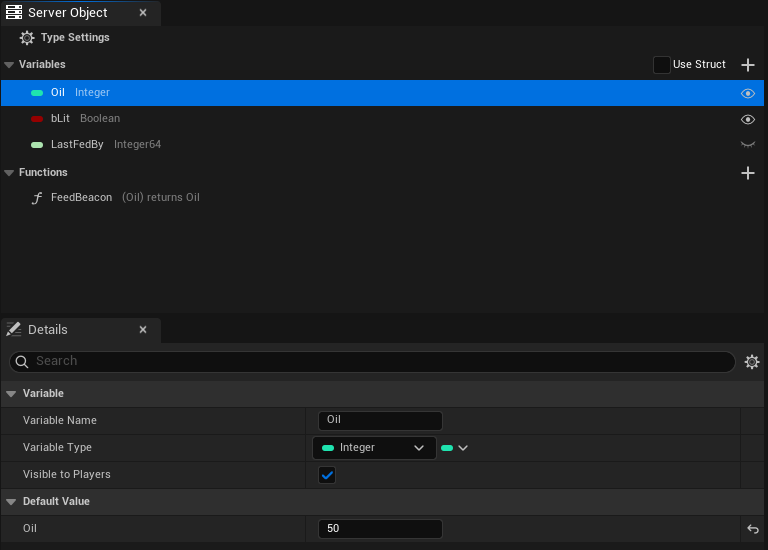
A function shows:
- a Function section whose header reads the node line, for example
FeedBeacon (Oil) returns Oil, with Name, the name your C++ passes toCall, Callable By (Players, Members, Leader or Server Only) and Cooldown, in seconds; - Inputs, what the caller sends, and Outputs, what the server answers with. Each has a Use Struct check-box and a + button in its header, and lists its pins the Blueprint way: type pill, name and default value on each row, with a drop-down to change the type, and rename, delete and drag to reorder. An empty one says "No inputs: the caller sends nothing. Add one with the + button." or "No outputs: the function replies nothing. Add one with the + button." Ticking Use Struct swaps the list for an Input Struct or Output Struct picker. A number input also gets a Value Range under Inputs, two boxes labelled Min and Max that the server holds callers to; see Value Range;
- a collapsed Advanced section with the Server Name, the name the function has on the server.
Code Source and the logic file are not in Details: they are on the Server Code tab, beside the code they choose.
Type Name
The Type Name box checks what you type as you type it and says what is wrong: "Needed: the type's name on the server.", "At most 48 characters.", "Start with a lowercase letter." or "Use only lowercase letters, digits and underscores." The problem appears under the box with a warning icon. The value is stored when you press Enter or leave the box. When there is a problem and the asset's name gives a better idea, a Use village_beacon link beside it sets the Type Name from the asset name ("Sets the Type Name from the asset's name"): CSO_VillageBeacon becomes village_beacon, dropping the CSO_ (or the DA_ of an older asset) and putting an underscore where each word starts.
Callable By
Callable By, in a function's Details, decides whether a player may call it.
| Choice | What happens |
|---|---|
| Players | Players can call it, and so can other server code and developer tools. |
| Members | Members of the Server Object can call it. Needs Members From; see Members. |
| Leader | Only its leader can. Needs Members From. |
| Server Only | Only other server code and developer tools can. A player's call is refused, and the caller's OnDone sees the Denied outcome, with a Reason such as "players may not call this function"; see Troubleshooting. The function's row in the Server Object panel carries a Server Only tag. |
Other server code and developer tools may call every function whatever it says.
Server Only is for functions that should never be reachable from a game client, such as a payout your own server code triggers or an administrative reset. The check is made on the server, so a modified game client cannot get around it.
Two definitions with one Type Name
Two definitions cannot use the same Type Name, since both would write the same Server/<Type Name>/ folder and become the same type on the server. When another definition has the Type Name, the Type Name row says "Another definition already uses this Type Name; give this one its own.", the status readout reads Problem followed by the same text, Generate and Deploy are disabled, and the list of deployed revisions is hidden, until one of them is renamed. Server Compute refuses to deploy too, naming both assets: "Two Server Object types are named village_beacon (...) and (...); each needs its own Type Name".
Every setting
The platform term is in brackets, for when you read the platform's own ck-exec pages or its logs. Where the editor labels a setting differently from its C++ name, the label is given too.
Server Object
- Type Name [node type]: the type's name on the server. Lowercase letters, digits and underscores, starting with a letter, at most 48 characters, and unique in your project.
- Description: what this type is for, in a sentence. It is shown beside the type on the Server Compute page. It is for you and your team: it is not sent to the server, and it is not part of a packaged game.
- Visibility (
ECrowdyServerObjectVisibility, labelled Readable By): who may see the values.- Public (Every Player): every player can read the variables visible to players and is told of each change.
- Owner Only: each Server Object belongs to one player. Its Instance Id is that player's user id, and only that player can read its values or call its functions. See Owner Only types.
- Members: only the Server Object's members read its values; anyone can still see who the members are and join. Needs Members From. See Readable By.
- Only One Instance (
bOnlyOneInstance): one shared instance for every player, like a registry or a world event; nothing picks an instance. See Only One Instance. - Members From, Max Members, Show Members to Players, Remove Members Who Leave, Timers, On Player Joined, On Player Left and Can Call: the settings on Access, members and timers. Members From is None, This Object or Crowdy Team.
- State Form (
StateForm, anECrowdyServerValuesForm, shown as the Variables' Use Struct check-box): Struct (Use Struct ticked) or Variables (Listin C++), added in the asset. The one not chosen is kept but not used. - State (labelled State Struct) [the hub's state, kept in its snapshots]: the struct holding everything the server keeps for one Server Object, when the Variables use a struct.
- State List (
StateList, anFInstancedPropertyBag, labelled Variables): the variables added in the asset, each with its default value, where a new Server Object starts. In the generated server code they are a struct named after the Type Name in PascalCase plusState, sovillage_beacongivesVillageBeaconState. - Watched Fields [the
statetopic] (labelled Visible to Players; the eyes): the variables players can read and watch, by the name the editor gives them. The others never leave the server. - Functions [methods]: what players, other server code and developer tools can ask the Server Object to do. Each, an
FCrowdyServerFunction, has:- Name: the name your C++ passes to
Call. - Server Name (in the function's Advanced section) [method name]: the function's name on the server. Empty uses Name in snake case, so
FeedBeaconbecomesfeed_beacon. Lowercase letters, digits and underscores, starting with a letter, at most 64 characters;readis reserved. - Params Form (
ParamsForm, shown as the Inputs' Use Struct check-box): Struct or Variables, added in the asset. - Params (labelled Input Struct): the struct the caller sends, when the Inputs use a struct. None sends nothing.
- Params List (
ParamsList, labelled Inputs): the inputs the caller sends, with their default values. No inputs sends nothing. In the generated server code they are a struct named after the function plusParams, such asFeedBeaconParams, with the default values as its defaults. - Reply Form (
ReplyForm, shown as the Outputs' Use Struct check-box): Struct or Variables. - Reply (labelled Output Struct): the struct the server answers with, when the Outputs use a struct. None answers nothing.
- Reply List (
ReplyList, labelled Outputs): the outputs the server answers with. No outputs answers nothing. In the generated server code they are a struct named after the function plusReply, such asFeedBeaconReply. - Who Can Call (
ECrowdyServerFunctionCaller, labelled Callable By): Players lets players call it; Members and Leader limit it to the members or the leader; Server Only refuses a player's call, and only other server code and developer tools can call it. See Callable By. - Cooldown (
CooldownSeconds): how long one player waits between two calls that succeeded; 0 for none. See Cooldown.
- Name: the name your C++ passes to
A function added with + starts with its inputs and outputs added in the asset, and none of either.
Variables, inputs and outputs added in the asset can be any type the Blueprint type picker offers there: booleans, integers, floats and doubles, names, strings, enums, structs, soft object and soft class paths, and arrays, sets and maps of those. Text, object, class and interface references, FInstancedStruct and FGameplayTagContainer are not offered, since a Server Object cannot carry them.
Variables, inputs or outputs share one struct in the generated server code when they have the same names, types and order and one was copied from the other, which keeps each value's hidden id. Lists you built separately in the editor never share, even if they look alike. The first of the sharing Lists keeps the struct, counting the variables first, then the functions in order with inputs before outputs. Each of the others that starts with the same values gets its own name as a type alias, so logic.rs can still use it: in the tip jar, the Tip output (Total, starting at 0) is pub type TipReply = TipJarState;, because the jar's Total also starts at 0. A List that has the same shape but starts with different values gets its own struct with its own defaults. In the village beacon, the beacon's Oil starts at 50, so the FeedBeacon input (Oil, starting at 10) and output (Oil, starting at 0) are each their own struct, and code that used one for the other no longer builds. Generate shows a notice when a List switches between the two, such as "TipReply is now its own struct, since its starting values differ from those of TipJarState; code that uses one for the other no longer builds." In Unreal each function keeps its own default values: Make Inputs, the call nodes and a reply that leaves a value out use that function's. In the generated server code the defaults matter only when an older client leaves out a value it does not know yet.
Save and stop (with the type's own settings)
- Save Interval Seconds [
persist_every_ms] (labelled Save Every): how often the server saves a running Server Object, 5 to 60 seconds, default 30. After a crash it starts again from its last save, so at most this much is lost. - Idle Timeout Seconds [
evict_after_ms] (labelled Stop When Idle For): how long a Server Object nobody uses keeps running before the server stops it, 1 to 1800 seconds, default 300. The next use starts it again from its last save.
Server Names (in the Advanced group)
- Field Names: keeps a field's name on the server when you rename the field in Unreal. Each entry, an
FCrowdyServerFieldName, names the struct, the field as the struct now names it, and the Server Name to keep. You pick the struct, then the field from a list of that struct's fields, so there is nothing to spell. For variables, inputs and outputs added in the asset, use List Value Names. - Enum Value Names: the same for an enum value, each entry an
FCrowdyServerEnumValueName: pick the enum, then the value from a list of its values. - List Value Names: the same for a variable, input or output added in the asset, each entry an
FCrowdyServerListValueName: pick the List (the variables, or a function's inputs or outputs), then the value, and the Server Name to keep. An entry follows its value through later renames, since it records the value's id, not its name. You rarely add one yourself: Generate Server Code adds it when you choose to keep a renamed value's old name (see After you change the definition). An entry stops applying when its function is renamed; Generate then asks again.
In both, the second list stays empty until the first is chosen ("Choose the struct first", "Choose the enum first"), a list with nothing to offer says "Nothing to pick", an entry still to be filled in reads "None", and one whose struct, field, enum, value or List is gone reads its name followed by "(missing)" ("Unknown value (missing)" for a List value, which is kept by its id). A Blueprint enum's values are listed by the names the editor shows.
Server Code (set on the editor's Server Code tab, not in Details)
- Code Source: where this type's Server Functions come from. Generated (the default) uses
Server/<Type Name>/src/logic.rs, the file Generate Server Code writes once and never replaces. My Own File uses a.rsfile of your own instead, for example one shared in your repo. It is the combo beside the file's path on the tab. In C++ the choice is the enumECrowdyServerCodeSource, with the valuesGeneratedandOwnFile. - Logic File: your
.rsfile, relative to the project folder, chosen with the folder button on the Server Code tab. The button is shown, and the file used, only when Code Source is My Own File; with My Own File and no file chosen, the type cannot be generated or deployed, and the messages say "Code Source is My Own File but no file is chosen". The tab shows the file's state and code; see Write its server logic and Use your own logic file. Both settings are editor-only, like the Description.
Baked (in the Advanced group, read only)
- Baked Structs and Baked Enums: the field and value tables the SDK uses at runtime, rebuilt every time you save the asset. You never edit them.
Checks when you save
Saving the asset, and the editor's Validate Data, check the whole definition and list every problem at once, naming the struct and field (or the function) each is about: a Type Name or Server Name that breaks the rules, two functions or two fields with the same name on the server, a variable visible to players that is not in the State struct, and any field of a type a Server Object cannot carry. The Server Object panel puts a warning icon on the variable or function a problem is about. A definition with a problem cannot be used until it is fixed.
Variables, inputs and outputs added in the asset are checked the same way, named by the name the server code gives them, for example "FeedBeaconParams.Label: text is not supported; use FString". Two more checks are about them only:
- "Add at least one variable, or use a State struct": the Variables are added in the asset and there are none.
- "Two lists are named FeedBeaconParams; give their functions different names": two functions with the same Name both have inputs (or outputs) added in the asset, which would give the server two structs with one name.
Field names on the server are your C++ member names (Oil, bLit), or a Blueprint struct's field names with every character other than letters, digits and underscores removed (Max Health becomes MaxHealth). Two fields whose names differ only in case are refused.
The tables in the asset describe the structs as they were when it was saved. If a struct gains or loses a field and the asset is not saved again, acquiring a Server Object of that type fails with a message saying the struct has changed since the definition was saved. Every cook saves it again, so this bites in the editor, not in a packaged game.
Field types
| Type | Notes |
|---|---|
bool, uint8, int32, int64, float, double | C++ also allows int8, int16, uint16, uint32, uint64. |
FString, FName | Use FString for text the server makes up or players choose (names, messages). |
| Enums | Travel by the value's name, so reordering values is safe. |
Nested USTRUCTs | |
TArray, TSet, TMap | Set elements and map keys must be strings, names, integers or enums. |
TOptional | C++ only. |
FVector, FVector2D, FIntPoint, FIntVector, FRotator, FQuat, FLinearColor, FColor | |
FDateTime, FTimespan | To the millisecond. |
FGuid, FGameplayTag | A tag this build does not know fails to decode. |
TSoftObjectPtr, TSoftClassPtr, FSoftObjectPath | The path only; nothing is loaded. |
Every FName and soft object path the server sends becomes a permanent name in the engine, never freed, so a client accepts at most 1 Mi (1,048,576) characters of new names (Name values and soft object path parts it has not seen before) from the server per run. Past that, a new Name reads as None and an object path made of new names reads as empty; the rest of the message still applies, a map or set entry whose key was skipped is dropped, and the client logs one warning. The text "None" never counts. A variable holding player-chosen names or free text should be a String (FString). Keep FName, enums, gameplay tags and soft paths for values drawn from a fixed set your game already knows.
Refused: object, class, weak and interface references, FText, FInstancedStruct, FGameplayTagContainer (use a TArray of FGameplayTag), fixed-size arrays, delegates, and field paths. Editor-only, deprecated and Transient properties never travel.
Changing a type later
A Server Object's state outlives the code that wrote it, so some changes are safe and some are not.
| Change | What happens |
|---|---|
| Add a field | Safe. Older saves and older clients leave it at its default. |
| Remove a field | Safe. The server drops it from its saves. |
| Rename a field | The server sees one field removed and another added, and the old value is lost. Keep the old name under Field Names instead. |
| Rename a variable, input or output added in the asset | Generate Server Code notices the rename and asks whether to keep the old name on the server. Keep it and saved values carry over (a List Value Names entry holds the old name); rename it on the server and the old value is lost, as with a field. |
| Change a field's type | Refused when the value is read, and a save holding the old type cannot be loaded. Add a new field instead. |
| Reorder enum values | Safe: values travel by name. |
| Add an enum value | An older client reads the new value as the field's default and logs a warning; older server code refuses it. |
| Remove or rename an enum value | A save holding it cannot be loaded. Keep the old name under Enum Value Names, or stop using the value before you remove it. |
After any change, the server code has to be generated and deployed again for the server to know it; see After you change the definition.
Related
- Access, members and timers: who may read and call, members, timers, and calling other types
- Write its server logic: generating the type's server code from this asset, and the Server Code tab
- Get a Server Object, from Blueprint and from C++: using the type in a game
- Unreal and ck-exec names
- ck-exec overview: hubs, snapshots and the manifest these settings become