Deploy it with Server Compute
Server Objects run on ck-exec.
Once a type's server code is generated and its logic.rs written, the server still has to run it. Server Compute is the page in Crowdy Studio that builds your project's server code on the platform, deploys it to your app, and then lets you watch it work: which version is live, what it logged, how players' calls to each Server Function went, and a switch to stop one type if it misbehaves. There is nothing to install: the build happens on the platform, so no Rust toolchain is needed on your machine.
Open the page
Open Crowdy Studio (Tools, Crowdy SDK, Crowdy Studio) and choose Server Compute under COMPUTE in its navigation.
It uses the sign-in and the app you already set in Studio: sign in, then pick your app on the Project page. If you are not signed in, or no app is set, the page says so ("Sign in to Crowdy Studio first" or "Set the app in Crowdy Studio first", then "Sign in and choose an app on the Project page.") and shows a Try Again button; fix it in Studio and press that.
The header holds the title, the line "Deploy your Server Objects' server code, then watch how players' calls to it go.", a line naming the app and backend ("App 12345 on Dev"), one status badge, and Refresh. The badge shows the first of these that applies:
| Badge | Meaning |
|---|---|
| Budget paused | The app used up its Server Compute budget, so players' calls are refused until it is raised. |
| Switched off | The app's Server Compute is switched off, so players' calls are refused. A Switch on button sits beside the badge. |
| Nothing deployed | The app has no active server code yet. |
| Live: version 7 | Version 7 is the app's active server code. |
Hover a badge for a one-line explanation. Refresh reads the app's status, versions, logs and activity again and checks the project's Server Object types. If you change the app in Studio, the header line adds "The project's app has changed since; press Refresh to show it."
The page has five tabs: Overview, Versions, Logs, Activity and Settings. Building, deploying, making a version active and switching on or off need your organization's manage_compute permission; reading needs view_compute_diagnostics. A problem from the platform, such as a missing permission, is written in red under the tab it came from, for example "Could not read the app's status: ..."; a busy server is retried for you first.
Overview
The Server Object types card lists every definition asset in the project, sorted by Type Name, and below them any type that is on the server but no longer in the project. Hover a Type Name to see its asset. Each row shows, from left to right, the Type Name, one badge, the running switch, and a ... menu. Under the name are the type's description, if its definition has one, and a small line with how many functions it has, how many variables are visible to players ("2 variables visible to players"), who can read it ("readable by every player", "readable by its members" or "only its owner can read it") and, once the Activity numbers are in, how many calls it had over the Activity tab's period, for example "1.2k calls in the last hour". The parts are separated by dots.
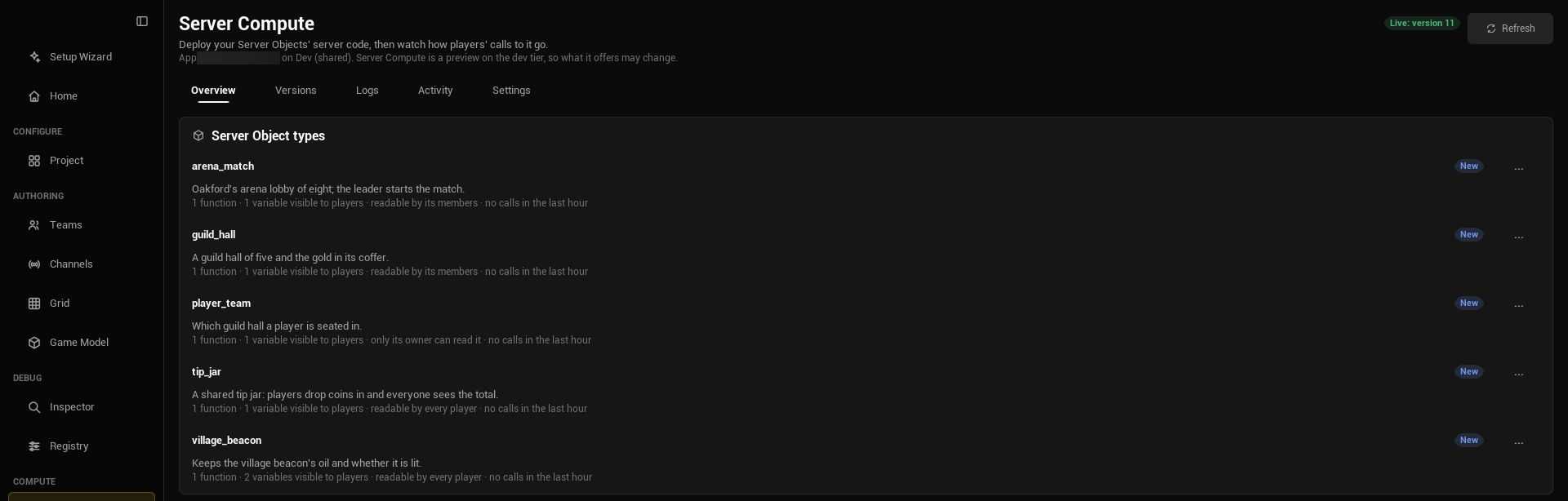
The badge is the first of these that applies. What stops the type's server code from being built comes first:
| Badge | Meaning |
|---|---|
| Needs generating | There is no folder for the type yet, logic.rs is missing, or the type uses My Own File and no file is chosen or the file is missing. The reason is written under the Type Name. |
| Out of date | The definition or a struct it uses changed since the code was generated. Regenerate it with Generate. |
| Problem | The definition fails its checks, or its Type Name is root, the name of the platform's top-level type. The reason is written under the Type Name. |
Once the type's code is fine, the badge says how the type compares with the version that is live now:
| Badge | Meaning |
|---|---|
| No changes | The live version runs this code with these settings. Hover: "Live in version 7 exactly as it is here". |
| Changed | The live version runs another revision of the code, or other settings. Hover: "Changed since version 7: server code, save interval. Deploy to make it live." Server code, save interval and idle timeout are the three things it can list. |
| New | The live version does not run this type: "Not live yet. Deploy to add it." |
| Live code unknown | The live version runs code this project has no record of, for example deployed from another copy of the project. "Deploying replaces it." See What a deploy records. |
| Ready | The type's server code is fine, but it has not been compared yet, because the app's versions have not been read (you are not signed in, or the read failed). Press Refresh. |
A type that the live version runs and the project no longer has gets a Removed row instead: its name, a Removed badge ("On the server, not in this project"), the running switch, and the line "On the server, not in this project. Your next deploy removes it." Once every definition is gone from the project the line says instead "On the server, not in this project. It keeps running until the project has a type to deploy again, since a deploy needs at least one type. Switch it off here to stop players' calls to it."
The definition asset's editor shows the same state for its type in the status readout at the right of its toolbar, with Changed since version 7 and Not deployed yet in place of Changed and New; see The asset editor. Its Deploy dropdown has an Open Server Compute entry that brings you to this page.
The page does not regenerate code for you. Regenerate from the Content Browser or the asset, then open the tab again or press Refresh. With no definition assets it says "No Server Object types yet." and "Create a Server Object Definition asset to add one."
Once the app's status is known, a type the live version runs also says Running or Switched off, with a Switch off or Switch on button (see Switching a type or the app off and on). A type that is not live yet has nothing to switch, so it shows neither.
Remove a type
The ... menu on a type has two entries. Open definition opens the type's definition asset. Remove from project... takes the type out of the project: it deletes the definition asset and, when the folder is the type's own, its Server/<Type Name>/ folder. It is disabled while another operation runs, and it asks first, in a dialog titled "Remove village_beacon":
Remove village_beacon from this project?
This deletes its definition /Game/Beacon/CSO_VillageBeacon and its Server Code folder Server/village_beacon.
village_beacon keeps running on the server (App 12345 on Dev) until your next deploy, which removes it.
The confirm changes with the situation:
- What it deletes. Everything in the type's
Server/<Type Name>/folder goes with it:logic.rs, the generated files andrevisions.json, so the type's revision history goes too. Get them back from version control if you need them. A logic file of your own that lives outside that folder is never touched. - What it leaves, and why. The folder is left alone, and the dialog says "This deletes its definition ... only." followed by the reason, when deleting it could hurt something else: "Another definition has the same Type Name and so the same Server Code folder, which is left as it is."; "Its Type Name is not a valid one, so its Server Code folder may be another type's; it is left as it is."; "Its Server Code folder is not directly inside the project's Server folder, so it is left as it is."; "It has no Server Code folder."; or "Its Server Code folder is, or holds, a link to somewhere else, and deleting it could delete what the link points to; it is left as it is, so delete it by hand." A folder that could not be deleted is reported in red under the tab: "Removed village_beacon's definition, but could not delete its Server Code folder Server/village_beacon. Delete it by hand."
- Unsaved code edits. If the type's code has edits you have not saved, the dialog lists the files: "Its unsaved code edits are lost:".
- What it does on the server: nothing yet. A type that is live keeps running, with players calling it, until your next deploy, which no longer includes it and removes it (the deploy's confirm says "It removes village_beacon, which the project no longer has; its Server Objects stop."). Until then it shows as a Removed row, where you can still switch it off. A type that was never deployed ("New") says "village_beacon is not live on the server (App 12345 on Dev), so nothing changes there."
- The last type. A deploy needs at least one type, so removing the project's last one cannot take it off the server: the confirm says "village_beacon keeps running on the server (App 12345 on Dev) until the project has a type to deploy again, since a deploy needs at least one type. To stop players' calls to it meanwhile, use Switch off on this page."
After you confirm, the editor's own delete runs, with its usual check of what still refers to the definition, for example a Blueprint slot holding it; it may ask again, and if you cancel there nothing else happens. If the row went stale (the asset moved, or its Type Name changed since the list was read) nothing is removed and the page says "/Game/Beacon/CSO_VillageBeacon is no longer the definition of village_beacon, so nothing was removed. The list is read again; try once more from it."
Deploy
The Deploy card says "Builds every type's server code on the server and makes it the app's live version. Players use it at once." and holds the Deploy button, a status line, and Deploy starter pack.
Deploy is offered only when something changed. Once every type's code is fine and the live version is known, the status line says what a deploy would do, and the Deploy button is shown only if there is something to do:
- "Since version 7: 1 changed, 1 new. Deploying sends the project's 2 types." Any of "changed", "new", "running code not recorded here" (the live version runs something this project has no record of) and "removed" can appear, each with its count.
- "Nothing changed since version 7." The Deploy button is not shown at all.
- "Nothing is deployed yet. Deploying sends the project's 2 types." for an app with no active version.
- "Ready to deploy 2 Server Object types." when the live version could not be compared, for example because it has not been read yet; press Refresh.
A change you have just deployed keeps its "Deployed as version 8." line until something changes again, then the summary takes over. A failed or half-recorded deploy keeps its message until the next deploy. Deploy is disabled while any type is not fine, and the line says what to do: "Fix the 1 type marked Problem first.", "Generate Server Code for 1 type first (right-click the definition in the Content Browser).", or "Create a Server Object Definition asset to deploy."; two definitions with one Type Name show "Two Server Object types are named village_beacon (...) and (...); each needs its own Type Name". It is also disabled while another operation runs. The same rules apply to the Deploy button in a definition asset editor's toolbar.
Deploy asks first, in a dialog titled Deploy. The first sentence is always there, then one sentence for each kind of change that applies, naming the types:
Deploying replaces the active server code of App 12345 on Dev with this project's 2 Server Object types.
It adds lantern.
It changes village_beacon (server code, save interval).
The other two are "It replaces live code this project has no record of in village_beacon." and "It removes lantern, which the project no longer has; its Server Objects stop." When what the app runs now could not be read, the dialog says "What the app runs now could not be read, so what this changes is not known." instead. Read the list before you answer Yes: it is the difference between what you have here and what players are running.
If any server code file has edits you have not saved in the asset editor's Server Code tab, the dialog adds:
1 Server Code file has unsaved edits; Deploy sends the saved files.
and lists the file names. Answer No, save them, and deploy again if you meant to send them.
Confirm, and Studio sends the platform:
- the server code of every Server Object type in the project, exactly as it is on disk under
Server/<Type Name>/(a type whose Code Source is My Own File sends that file as itslogic.rs), and - a small crate named
rootthat the SDK writes for you. It keeps no state; it is the top-level type every Server Object type sits under on the platform, and you never edit it.
together with an entry for each type saying that players may reach it and giving its Save Interval Seconds and Idle Timeout Seconds from the definition (the platform's manifest).
A deploy replaces the app's active server code as a whole; it does not add to it. That is why every type goes together: a type left out of a deploy is a type the app no longer has in its active code, until a deploy or a version that includes it is active. That is also how removing a type takes effect. For the example world, a project with CSO_VillageBeacon and a CSO_Lantern sends village_beacon, lantern and root in one deploy, even when only the beacon's logic.rs changed.
The status line follows the build: "Sending the server code...", "Waiting for a builder... 4 s", "Building on the server... 12 s", "Deploying...", and finally:
Deployed as version 7.
Once the deploy succeeds, Studio also records what it sent in each type's Server/<Type Name>/revisions.json, which is how the page tells you next time what changed; see What a deploy records. If a record cannot be written the deploy still stands, and the line says so in the warning color: "Deployed as version 7. Its record could not be saved, so its changes cannot be compared: ..." Commit revisions.json with the crate.
A Build output button appears once a build has output, and opens it in a read-only box. A failed build deploys nothing: the line says "The build failed. See the build output below." and the box opens by itself, usually with a compiler error in a logic.rs. Only one operation runs at a time; the buttons are disabled until it ends. The platform limits a build to 16 crates, 64 files per crate, 2 MB of source and 5 minutes; the builds page has the full list. A project over the first three shows the reason on the status line and Deploy stays disabled.
A running Server Object keeps its old code until it next starts; see Operations. Switching its type off and on again moves it at once.
Deploy starter pack
Deploy starter pack builds and deploys the platform's example types instead of your project, after asking:
Deploying the starter pack replaces the active server code of App 12345 on Dev with the platform's example Server Object types.
It is meant for trying the platform out on an empty app. It replaces your project's server code just as Deploy replaces the previous code, so do not press it on an app your game uses; if you do, make the earlier version active again on the Versions tab. See Starter packs.
Versions
Every deploy makes a new version. The Versions tab lists them newest first: "Version 7", an Active badge on the live one, and a line such as "3 h ago by Ada, 2 types" (hover it for the exact time). Under it, a second line says what that deploy changed from the version before it, for example "Since version 6: village_beacon changed", or "Since version 6: lantern added" and "lantern removed" when a type came or went, several joined by dots. A deploy that changed nothing says "Same server code as version 6". Hover it: "The types whose server code or settings differ from the version before it". The platform reports each version's types, so this works for versions anyone deployed, from any copy of the project; the oldest version has no line, and neither does one whose code cannot be compared with the one before because the platform has no build digest for it. With nothing deployed the tab says "Nothing deployed yet." and "Deploy from the Overview tab."
Make active on any other version asks first, in a dialog titled "Make version 6 active":
Makes version 6 the active server code of App 12345 on Dev.
That is a rollback: if version 7 has a bug, make 6 active and players get the earlier code, while you fix logic.rs and deploy again. It changes no Server Object's saved values. As with a deploy, a running Server Object moves to the code when it next starts. Rolling back to a version older than a definition change can leave Server Objects saved in a newer shape; read Changing a type later before you go back across one.
Switching a type or the app off and on
Each type row on the Overview tab has a Switch off button, or Switch on once the type is off. Use it when one type is causing trouble and you want it quiet while the rest of the app carries on. Switching off asks first, in a dialog titled "Switch off village_beacon":
Players' calls to village_beacon in App 12345 on Dev are refused until it is switched on again. Its Server Objects are saved and stopped.
Switching on asks nothing. While a type is off, calls to it are refused and reach the client as the Denied outcome (see Troubleshooting), and nothing of that type runs. Switch it on and its Server Objects start again, from what was saved, the next time a call reaches them. This is also the quick way to make a running Server Object pick up newly deployed code. It is not the same as removing the type in a deploy: the code stays and the state is kept. The buttons are disabled until the app's status has loaded and while another operation runs.
When the whole app is switched off, the header badge says so and its Switch on button, after asking "Players can call the Server Functions of App 12345 on Dev again.", lets players call the app again. The page cannot switch the whole app off; see the kill switch for that.
Logs
The Logs tab shows the lines your server code writes with ctx.log. For the beacon:
ctx.log(Level::Info, &format!("fed {} oil, now {}", params.Oil, self.Oil));
Filter by type (type a name in the "All types" box and press Enter) and by level: All, Info, Warnings or Errors. Lines come newest first, 100 at a time; Load older at the bottom pages back. Each line has a colored dot (hover for Error, Warning, Info or Debug), its text, and a small line such as "3 min ago, village_beacon, 42": when, the type, and the Instance Id. Hover it for the exact time. The platform keeps lines for 24 hours; with none to show the tab says "No log lines match." and "Lines are kept for 24 hours."
A flow is the platform's name for one call and everything it causes. Show this call on a line shows only the lines of that call, and a One call chip appears beside the level choices; its x shows every call again. That is how you follow one FeedBeacon from a player's request through the beacon's own lines. Lines written outside a call, such as when a Server Object starts or stops, have no flow and no button. The limits on how many lines a call and an app may log are on Operations.
Activity
The Activity tab shows "How players' calls to each Server Function went, busiest first." for the Last hour, Last day or Last week. Each Server Function gets a card, for example village_beacon.FeedBeacon:
- how many calls: "1.2k calls in the last hour" (or "1 call in the last hour"),
- "no failures", or "94% succeeded",
- "usually answers in 12 ms (slowest 1.4 s)",
- and a badge for each kind of problem there was: N server errors (your code answered with an error, or the call failed on the server), N timed out, N refused (the caller was not allowed) and N busy (the server was busy; the caller may try again). Hover a badge for what it counts.
If FeedBeacon is slow or refusing, this is where it shows. With no calls it says "No calls yet in this period." The numbers come from Calls per endpoint on the platform.
Settings
The Settings tab holds Server Compute's settings for this project: "Server Compute's settings for this project. They are saved with the project, so everyone working on it shares them." It has one card so far, Revisions, with one setting.
Revisions to keep is how many deployed revisions of each type's server code the project keeps, to view, compare or restore in the definition asset editor's Server Code tab. It is a number from 3 to 50 and starts at 5. The hint under it reads "Per type, how many deployed revisions of its server code the project keeps to view, compare or restore (3 to 50). Saved in Config/DefaultEditor.ini; keeping fewer takes effect at the next deploy." The number is changed when you press Enter or leave the box.
The setting is saved to Config/DefaultEditor.ini in your project, not to your own editor preferences, so commit that file and your team shares one value. If the file cannot be written the page says "Could not save to Config/DefaultEditor.ini, so the change lasts only until the editor closes. Check that the file can be written, for example that it is not read-only." Check the file out first if your version control keeps it read only. Each type's history is Server/<Type Name>/revisions.json, which holds every kept revision's files in full, so a higher number makes it bigger; lowering the number trims each type the next time it is deployed.
From the command line
For a build server or a script, the same operations run without the editor window:
UnrealEditor-Cmd.exe Oakford.uproject -run=CrowdyServerCompute -op=deploy -yes
It uses Crowdy Studio's saved sign-in and app, so sign in and pick the app in the editor once on that machine first. There is no token to pass on the command line.
| Operation | What it does |
|---|---|
-op=status | The app's active version, whether the app is switched off, which types are switched off, and whether its budget is paused. |
-op=versions | The versions, newest first. |
-op=changes | Which types differ from the live version, like the badges on the Overview tab, and whether a deploy would change anything. Read only. |
-op=deploy -yes | Assembles the project, builds it, waits, deploys it, and records what it sent in each type's revisions.json, like Deploy. |
-op=starters -yes | Builds and deploys the starter pack, like Deploy starter pack. |
-op=activate -version=6 -yes | Makes version 6 the active one, like Make active. |
-op=disable -type=village_beacon -yes | Switches one type off. |
-op=enable -type=village_beacon -yes | Switches it on. |
-op=logs | Recent log lines. Optional -type=, -flow= and -limit=. |
-op=stats | Call counts per Server Function. Optional -type=. |
-yes stands in for the confirmation the page asks. deploy, starters, activate, disable and enable replace or switch the app's live server code, so without -yes they refuse with "This replaces or switches the app's live server code; pass -yes to confirm." and send nothing. The read-only operations (status, versions, changes, logs, stats) do not need it. An unknown -op is refused with the list of operations.
The command's exit code is its own result: 0 when the operation succeeded and 1 when it did not, whatever else the editor logs. It writes one line per step to the log under LogCrowdyExec. Add -out=<file> to also get the result as one JSON object: op, ok, error and errorCode (both empty when it succeeded), and the fields of that operation. A CI job can read it:
UnrealEditor-Cmd.exe Oakford.uproject -run=CrowdyServerCompute -op=deploy -yes -out=Saved/deploy.json
A job that runs -op=deploy without -yes fails with exit code 1 and deploys nothing, so add it once you are sure the job should replace the app's server code.
-op=deploy refuses, as the page does, when a type's server code is not ready (it needs generating, is out of date, or has a problem), and says why. Regenerate and commit the server code before the job runs; a Server/ folder that no longer matches its definition asset fails the job instead of deploying old code. Unlike the page, the command knows nothing about unsaved edits in an open editor; it sends what is on disk. It also does not check whether anything changed: it deploys what is on disk every time, so ask -op=changes first if the job should skip a deploy that would change nothing.
Changes and records
-op=changes compares the project with the live version the way the page does, without changing anything or needing -yes. It logs one line per type, for example village_beacon: changed (server code, save interval), live revision 2, and a last line saying nothing changed, a deploy would change what runs or not ready to deploy; see problems. With -out=<file> the JSON result adds:
| Field | What it holds |
|---|---|
liveVersion | The live version's number, or 0 when nothing is live. |
types | One row per type in the project, then one for each type on the server that the project no longer has: type (the Type Name), change, what and liveRevision. |
change | unchanged, changed, new, unknown (the live version runs code this project has no record of), removed (on the server, not in the project) or not_compared (the type's server code is not ready). |
what | For a changed type, what differs: any of server code, save interval and idle timeout. Otherwise empty. |
liveRevision | Where the revision the live version runs sits in the type's revisions.json, counting from 0 for the newest, or null when there is none. |
problems | Why the project cannot be deployed yet, one sentence each, as the page shows them. Empty when it can. |
ready | True when problems is empty. |
hasChanges | True when a deploy would change what runs (a type is new, changed, unknown or removed), and also when ready is false, since a type whose code is not ready differs from what a deploy would send once it is. |
A job that should deploy only when something changed can run -op=changes, stop when hasChanges is false, and otherwise run -op=deploy -yes.
-op=deploy writes each type's revisions.json after the deploy succeeds and logs "recorded the deployed revision of 2 types". A record that cannot be written does not fail the job: the deploy stands, the log warns "the deploy record was not saved for ...", and the JSON result lists each one under recordErrors (an empty list when all were saved). A job that builds the project's server code in CI should commit the changed revisions.json files afterwards, so the next -op=changes and everyone's Overview tab agree with what is live. -op=starters records nothing.
Be careful on a shared app
A deploy replaces the app's active server code for every player and every teammate on that app at once, and there is no separate staging step. Use an app of your own for experiments, keep Server/ in version control so a deploy can be repeated, and know how to make the previous version active before you deploy.
Related
- Write its server logic
- Create a Server Object type
- Call its functions, from Blueprint and from C++
- Troubleshooting: outcomes, refusals and
crowdy.exec.trace - Unreal and ck-exec names
- Crowdy Studio
- Builds and starter packs and Operations on the platform