Get a Server Object
Server Objects run on ck-exec.
Everything on the C++ pages can be done from Blueprint, and most of it needs no variable, no cast and no setup of your own. Open any Blueprint graph, type the name of a variable or function from a definition asset, and pick the node that appears. The node reads the variable, tells you when it changes, or calls the function, with a real pin for every value. A Blueprint and a C++ class can use the same Server Object at the same time.
To build one from nothing, following each click, see Tip jar: your first Server Object.
The typed nodes
Type a variable's name in the graph's palette or in the menu that opens when you drag off a pin, and the asset offers its nodes under Server Objects, then the asset's name. For the village beacon's CSO_VillageBeacon the category is CSO Village Beacon:
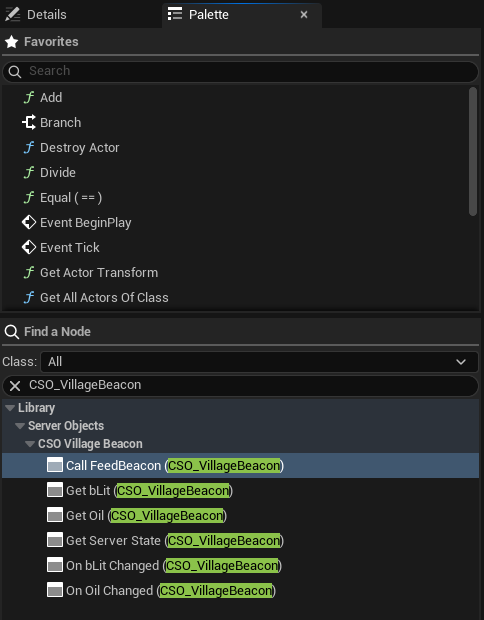
| Node | What it does |
|---|---|
| Get Oil (CSO_VillageBeacon) | Reads the variable Oil. A pure node: it has no execution pins. |
| On Oil Changed (CSO_VillageBeacon) | Runs when Oil changes. |
| Call FeedBeacon (CSO_VillageBeacon) | Calls the function FeedBeacon, with a pin for each input and each output. |
| Get Server State (CSO_VillageBeacon) | Every variable of the object at once, one output pin each. |
Pan a Blueprint figure with the right mouse button. Press Copy nodes, then Ctrl+V in your own event graph. The figure shows the four nodes for Oil; bLit has a Get and an On bLit Changed of its own, as the palette shows.
There is one Get and one On Changed for each variable and one Call for each function of the asset. Only variables ticked Visible to Players are offered, since a Server Only variable never reaches a player. There is also a generic Call Server Function under Server Objects, with a Function dropdown that lists every function of every asset, for when you would rather pick than type.
There is no bookkeeping to do. A Server Object is one shared object that the SDK keeps current. Get reads that object's current value directly, never a copy you have to refresh. On Changed follows it, so you do not keep a variable holding the last value, compare it, or unbind anything. Rename or retype a variable in the asset and the nodes follow; see When the asset changes.
Where the object comes from
Every typed node needs a Server Object. There are three ways to give it one.
-
Target. The default. The Target pin takes the Server Object, a Crowdy Server Object component, or an actor that has a component for that asset. Left empty it is Self, so a node in a Blueprint that has the component just works. Anything else cannot be connected to it, and the editor says why.
-
Find By Asset. For a widget or other Blueprint with no reference to pass in. Right-click the node and choose Find By Asset; the Target pin is replaced by the choice of Instance, which you can also change in the node's Details.
- Instance Id: a pin takes the id, such as
oakford. - Signed-In Player: the signed-in player's own object, for an Owner Only type.
- Player's Team: the signed-in player's Crowdy Team. A Team Id pin picks the team when the player is in several; 0 uses the first.
In C++ the choice of Instance is the enum
ECrowdyServerObjectFind, with the valuesInstanceId,SignedInPlayerandPlayersTeam.The object is acquired the first time a node of this Blueprint uses it, and held while the Blueprint lives. Right-click the node and choose Use Target to go back.
- Instance Id: a pin takes the id, such as
-
Only One Instance. A type with Only One Instance has just the one object, so its nodes need neither a Target nor an Instance. Place the node and use it.
Add the component
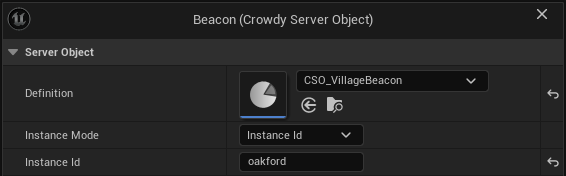
The typed nodes take Self as the default Target, so the simplest way to have a Server Object is an actor with a component. Open the Blueprint actor, click Add in the Components panel, and choose Crowdy Server Object. In its Details panel, under Server Object:
- Definition: the definition asset, such as the
CSO_VillageBeaconfrom Create a Server Object type. - Instance Mode: which Server Object of that type this actor uses. A type with Only One Instance ignores it.
- Instance Id: the id typed in Instance Id. Every actor with the same id shares one Server Object. The beacon uses the village's name,
oakford. - Signed-In Player: the signed-in player's user id. Use it for an Owner Only type, so each player gets their own. The component waits for the player to sign in, and joins again after a new sign-in or a new account.
- This Actor: the actor's placement in the level, which is the same on every player's machine. Only for an actor placed in the level with the component already on it, not one spawned at run time or given the component at run time.
- Player's Team: the signed-in player's Crowdy Team, for a type whose Members From is Crowdy Team. Team Id picks the team; 0 uses the player's only team. The component gets the player's teams if the game has not, and joins again when On My Teams Changed runs. A player in several teams fails with "This player is in 2 teams; set Team Id": set Team Id, then call Rejoin.
- From Server Value: the Instance Id is a variable of another Server Object, followed as it changes. Set Source Definition, Source Instance (the enum
ECrowdyServerObjectSourceInstance: Instance Id, with Source Instance Id, or Signed-In Player) and Source Variable, a String or an integer. While the variable is empty the component waits ("Waiting for TeamId"), and when it changes the component joins the new one. See Guild Halls.
- Instance Id: the id typed in Instance Id. Every actor with the same id shares one Server Object. The beacon uses the village's name,
The component joins at Begin Play and lets go at End Play. The Server Object is given back a few seconds after its last holder lets go, so a beacon that is destroyed and placed again straight away keeps its values. See Get a Server Object.
If you change Definition or Instance Id in a graph after the actor has begun play, call Rejoin on the component. It also tries again after a failure. While the component is joining, Rejoin does nothing, so calling it from the component's own On Status Changed cannot loop.
Its events and nodes
| Event or node | What it does |
|---|---|
| On Variables Changed (event) | Runs after every change of the Variables players can see, and once when they are first read. It gives the Server Object and the names that changed. The delegate is FCrowdyServerVariablesChanged. |
| On Status Changed (event) | Runs when the Server Object's status changes. Object is None when it could not be joined. The delegate is FCrowdyServerStatusChanged, which gives the Server Object and its status. |
| Get Server Object | The Server Object the component holds, or None before it joins one or after it could not. |
| Get Failure Reason | Why there is no usable Server Object, or empty. |
| Rejoin | Joins again. |
Without the component
The component is a convenience over the same nodes. You can use them from any Blueprint, such as a widget that shows the beacon's oil without owning it. These nodes, and Set Server Value and Get Server Value, are in the function library UCrowdyServerObjectLibrary:
- Get Server Object: takes a Definition, an Instance Id and an Owner (which defaults to the Blueprint itself), and returns the Server Object, or None with Error saying why. Owners that ask for the same one share it. It is held until the owner is destroyed.
- Release Server Object: stops one owner holding it, for an owner that lives on after it stops needing it, such as a widget that is reused.
- Get Player Instance Id: the signed-in player's user id, which is the Instance Id of their own Owner Only object. It is empty when nobody is signed in.
On the Server Object itself:
| Node | What it does |
|---|---|
| Get Status | Connecting, Ready, Failed or Released. See Status. |
| Get Failure Reason | Why it Failed, or what it is waiting for. |
| Get Instance Id | The Instance Id it was joined with. |
| On Status Changed | An event that runs when the status changes. |
The statuses are the ones from C++; see Status.
Related
- Get a Server Object, from C++: the same rules, from C++
- Read and follow its variables: the next page, Get and On Changed
- Tip jar: your first Server Object: the component, click by click
- Create a Server Object type: the asset these nodes come from
- Access, members and timers: Only One Instance, members and teams
- Guild halls and arena lobbies: the component's From Server Value mode
- Troubleshooting: a Server Object that stays in Connecting or Fails