Config Sync
Config Sync writes the selected app's ids and endpoints into your project's settings, so connecting a game to an app is one button instead of copying ids and URLs by hand. It lives on the Project page's Configuration tab.
Run a sync
- Open Crowdy Studio, sign in, and pick Project in the sidebar.
- Select the app the project should talk to.
- Open the Configuration tab under the app's details. It shows every value the sync would write. A value that differs from what the project holds is drawn in gold with the current value on a "was" line beneath it, and a badge beside the tab strip reads IN SYNC or N TO CHANGE.
- Read the diff, then press Sync to project.
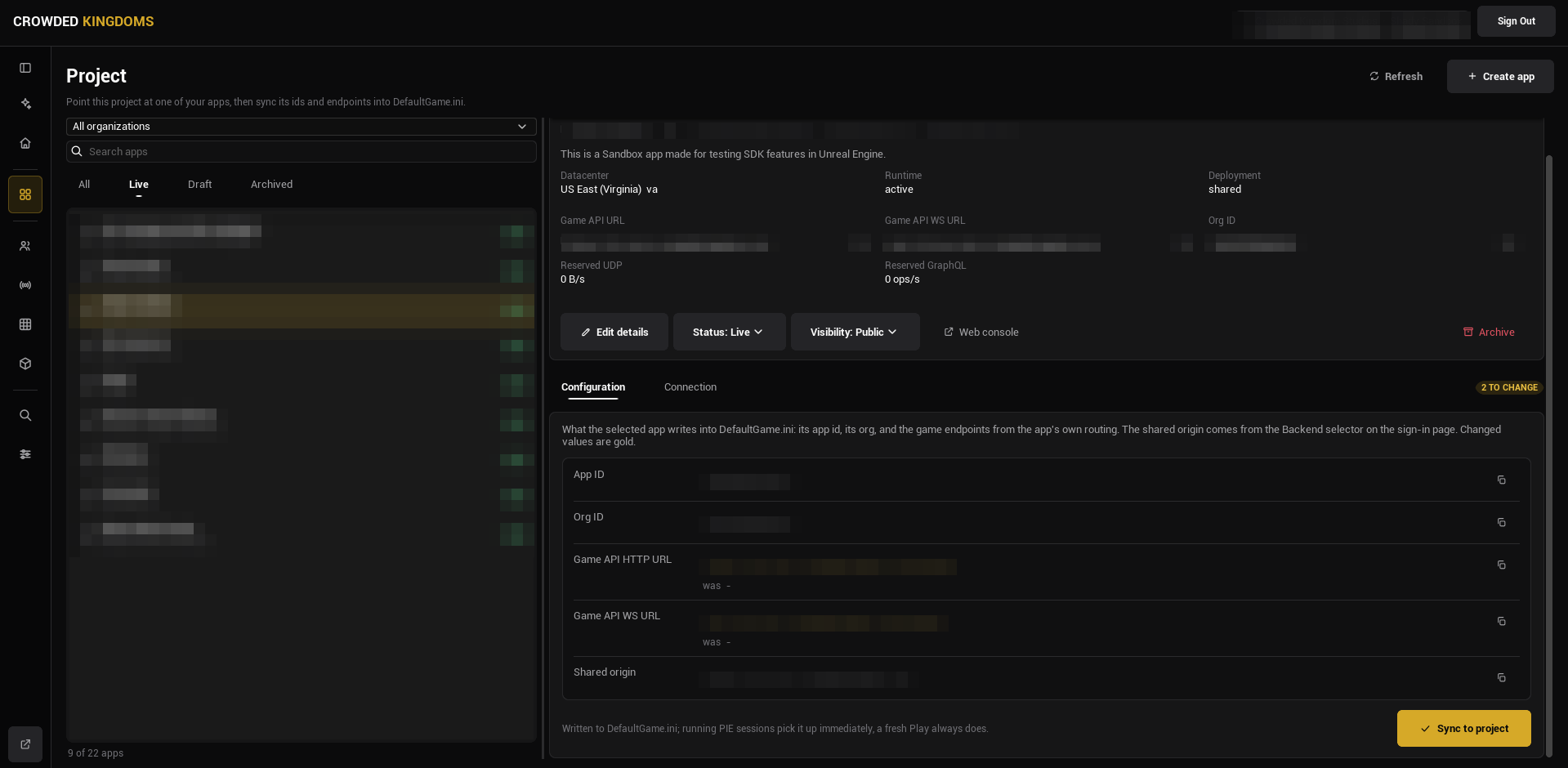
The rows are App ID, Org ID, Game API HTTP URL, Game API WS URL, and a read-only Shared origin, which comes from the backend selector on the Sign In page rather than from the app.
Sync pushes the new values into any running PIE or standalone session; a fresh Play always reads them. The Connection tab works differently: its three UDP knobs are written the moment you change them, with no Sync button.
What Config Sync writes, and what you own
All of it lands on one settings class, UCrowdySDKDeveloperSettings, which you can see under Project Settings, Plugins, Crowdy SDK. The network fields are shown there read-only.
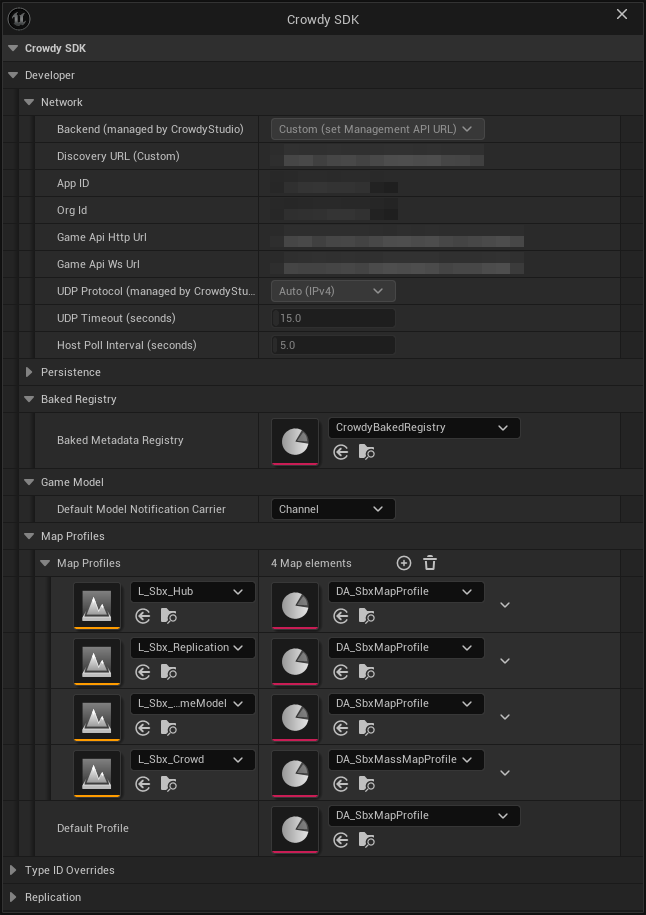
Written by Crowdy Studio (category Network; read-only in Project Settings):
| Property | Written from |
|---|---|
Environment | The backend selector on the Sign In page. |
DiscoveryUrl | The shared origin, used when the backend is Custom. |
AppID | The selected app. |
OrgId | The selected app's organization. |
GameApiHttpUrl | The app's own routing. |
GameApiWsUrl | The same endpoint with a WebSocket scheme. |
UDPProtocol | The Connection tab. |
UDPTimeoutSeconds | The Connection tab (6 to 120 seconds). |
HostPollIntervalSeconds | The Connection tab (1 to 60 seconds). |
Owned by you (editable in Project Settings):
| Property | What it does |
|---|---|
MapProfiles, DefaultProfile | Per-map SDK configuration and the fallback when a map has no entry. See Map profiles. |
BakedRegistry | The cooked snapshot of Crowdy metadata. See Inspector and Registry. |
DefaultModelNotificationCarrier | The realtime carrier an Effect's change notification uses by default. |
PreloadedEntityClasses | Entity classes to preload so a class nobody has spawned yet can still resolve off the wire. |
IDOverrides, ClassIDOverrides | Populate only when the log reports a type id hash collision. |
They are read-only in Project Settings on purpose, so that Crowdy Studio is the one source of truth. A value pasted into DefaultGame.ini by hand is overwritten by the next sync, and a project whose settings drift from its app fails to connect with no obvious error.
The runtime setters
The same goes for the two runtime setters on UCrowdySDKSubsystem: SetDiscoveryUrl stores a shared origin for this session and is read only when Environment is Custom (it warns otherwise), and SetGameApiUrl stores one Game API HTTP endpoint for this session, an address that is normally resolved from the origin rather than typed. ReloadEndpointsFromSettings is kept for existing call sites and does nothing: the API client re-reads both endpoints from the settings on every call, so a sync already reaches a running session.
RequestVersionInfo asks the server for its version before or after sign-in and answers on OnVersionInfo (FOnVersionInfo, two FGameVersion parameters: the server's version and, in ClientVersion, the minimum client version it still accepts). Both arrive as zeroes when the query fails.
Where the settings land
The class is Config=Game, so the values are written to Config/DefaultGame.ini under:
[/Script/CrowdyReplication.CrowdySDKDeveloperSettings]
Commit that file as usual; it holds ids and URLs, not secrets.
When to sync again
The N TO CHANGE badge tells you. It goes non-zero whenever the values the selected app would write differ from what the project holds: you selected a different app, changed the backend selector, or the app's endpoints moved. Press Sync to project again. Updating the plugin does not require a sync: the values live in DefaultGame.ini and the badge stays IN SYNC. Sync again only when the badge says so.
Config Sync points the project at an app. A map with no map profile of its own runs on the SDK's shipped default; a MapProfiles row or DefaultProfile naming an asset that fails to load resolves to no profile, and on that map the entity subsystem, the auto replicator, and the actor manager do nothing, so replication looks dead even though the connection is fine. The warning in the log names the asset.
The Setup Wizard
If you prefer a guided path, the Setup Wizard page walks through the same steps in order: sign in, pick an organization and app, run the sync. Studio lands on it after you sign in. Once you know the flow, the Project page does each step directly.
Gotchas
- The Configuration tab writes on Sync to project. The Connection tab writes on every edit.
- The shared origin is not per app. Change it on the Sign In page's backend selector, then sync.
- A PIE session that was already running picks up a sync; a packaged build needs the new
DefaultGame.inicooked in. - An organization token is enough to run Config Sync. It is not enough to author teams, channels, grids, or models.
Related
- Projects and Apps: picking and creating the app.
- Map profiles: the second half of "make replication work".
- Project settings reference: every property on the settings class.