Grids
A grid is a region of your world, in chunk coordinates, that carries a permission whitelist and per-user or per-team grants. When a client acts inside the region, the server checks the grid and allows or refuses the action. You author grids on the Grid page in Crowdy Studio.
Grids are server-side only
- Every grid operation requires the
manage_appspermission on the organization. - There is no player-scoped grid query. Game code cannot list or read grids at runtime, and there is no runtime grid API in the SDK. The one runtime call that touches grids is
Request Teleport Permissionon the Crowdy SDK subsystem, which asks the server whether the player may enter a chunk and answers onOn Teleport Permission(OnTeleportPermission, anFOnTeleportPermissionwith onebAllowedparameter). - Enforcement is server-side. When a client tries to act inside a region, the server checks the whitelist and the grants, then allows or rejects. The client never receives the grid definition.
The only surface is this Studio page. Sign in with your account; the page's subtitle tells you if the credential you used is not enough.
Open the Grid page
Open Crowdy Studio, sign in, select your app on the Project page, then pick Grid in the AUTHORING group of the sidebar.
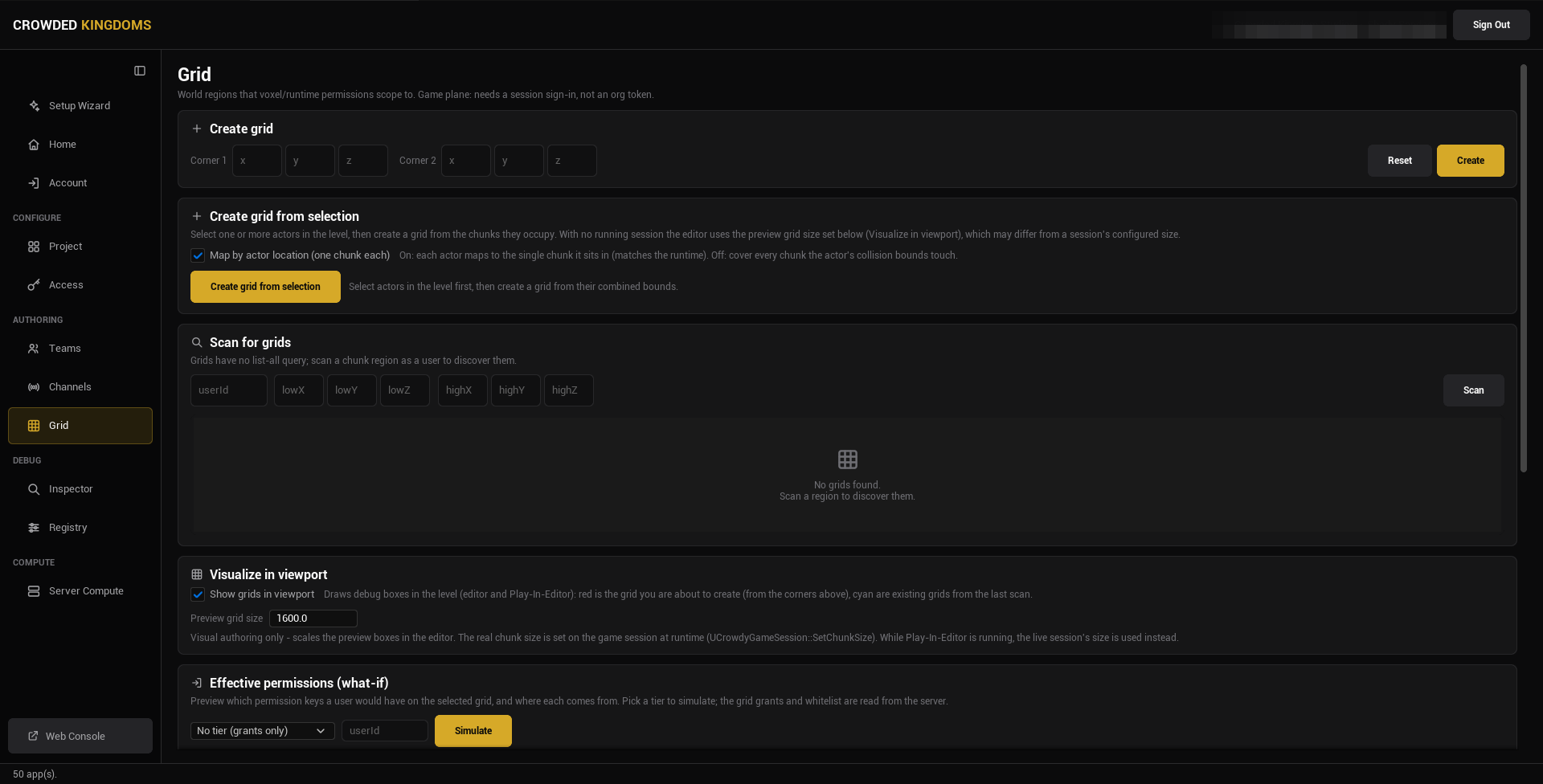
The page is a column of cards. Top to bottom:
Create grid
Type the two corners of the region (Corner 1 and Corner 2, each X, Y, Z in chunk coordinates) and press Create. Reset clears the boxes. Use this when you know the bounds you want, for example a region that lines up with a named area of your level.
Create grid from selection
Select one or more actors in the level, then press Create grid from selection. Studio derives the region from the chunks the actors occupy. The Map by actor location (one chunk each) checkbox chooses between mapping each actor to the single chunk it stands in (on, which matches the runtime) and covering every chunk the actor's collision bounds touch (off).
With no session running, the editor uses the preview grid size from the Visualize card below, which may differ from a session's configured chunk size.
Scan for grids
Grids have no list-all query. To discover the ones that exist, type a user id and a region (lowX to highZ) and press Scan. The results list shows every grid that region touches; select one to populate the Selected grid card.
Scanning also loads the app's runtime permission catalog, which the whitelist and grants below pick from.
Visualize in viewport
Tick Show grids in viewport to draw debug boxes in the level, in the editor and in Play in Editor: red for the grid you are about to create (from the corners above), cyan for the existing grids from the last scan.
Preview grid size scales those boxes at edit time only. The real chunk size is set on the game session at runtime, and while Play in Editor runs the live session's size is used instead.
Effective permissions (what-if)
Pick a user id and an access tier to simulate (the dropdown reads No tier (grants only) by default), then press Simulate. The card lists every permission key the user would have on the selected grid and where each comes from: the tier, or a grid grant. The grid's whitelist is applied last: effective permissions are the tier's keys plus the user's grants, restricted to the whitelist. Admins bypass all of this on the server.
Selected grid
Once a scan result is selected:
- Permission whitelist: a checklist of runtime permission keys. Nothing checked means no restriction.
- User grants: grant, revoke, or read a user's keys on this grid.
- Group grants: assign a team (optionally with a role) to a set of keys, with an expiry shown per grant. List Grants reads the current ones.
A group grant references a team by id. Create the team first; see Teams and Channels. Deleting a team revokes every grid grant it conferred.
From the command line
A script can scan for grids, create one, grant and revoke keys for a user or a team, set a grid's whitelist, and read the grants and effective permissions, all without the editor window. Every change needs -yes. The operations are listed under Access, teams, channels and grids on the Config Sync page.
Gotchas
- There is no list of all grids. Scan a region to find them, and scan again after you create one.
- Chunk coordinates, not world units. The preview grid size only affects the debug boxes.
- An empty whitelist means no limit, not no access.
- The what-if simulation reads the grants and whitelist from the server; it is a preview of what the server would decide, not a change.