Crowdy Studio Overview
Crowdy Studio is the management console for your app, and it runs inside the Unreal Editor as a dockable tab. You use it to point your project at an app, and to author the server-side pieces your runtime reads: teams, channels, and grids.
Use it when you:
- Start a project: sign in, pick the app, and write its ids and endpoints into the project with Config Sync.
- Author server-side data ahead of play: teams, channels, grids.
- Debug: watch a running Play in Editor session in the Inspector, or check the baked registry.
- Manage your own account: your name, your password, and your sessions.
Most setup mistakes come from a project pointed at the wrong app, or one that never ran Config Sync. Both are fixed on the Project page.
Open Crowdy Studio
Two ways:
- The Tools menu: Tools, Crowdy SDK, Crowdy Studio.
- The Crowded Kingdoms wordmark button on the level editor toolbar, next to Play.
The tab is called Crowdy Studio. Dock it anywhere, or float it on a second monitor, and it reopens from your saved layout.
Editor-only, one-way
Crowdy Studio is an editor module and never ships in a packaged build. It writes settings and server data; the runtime reads those on its own and never talks to Studio.
Studio writes three things into your project: the connection settings in DefaultGame.ini (Config Sync and the Connection tab), the baked registry asset under Content/CrowdySDK (the Registry page), and a per-user session file under Saved/. Your game reads the settings and the registry at startup. Everything else Studio authors lives on the server.
Native pages and the Web Console
Studio has two surfaces.
Native pages are Slate UI built into the editor. They cover the work you do while building: choosing an app, syncing config, checking the app's features and tier grants, authoring teams, channels and grids, and reading live state.
The Web Console is an embedded browser for account and organization administration: members, billing, tokens, secrets. It signs you in with the session you already have in Studio. The sidebar's bottom button opens it on your organization's overview.
The sidebar
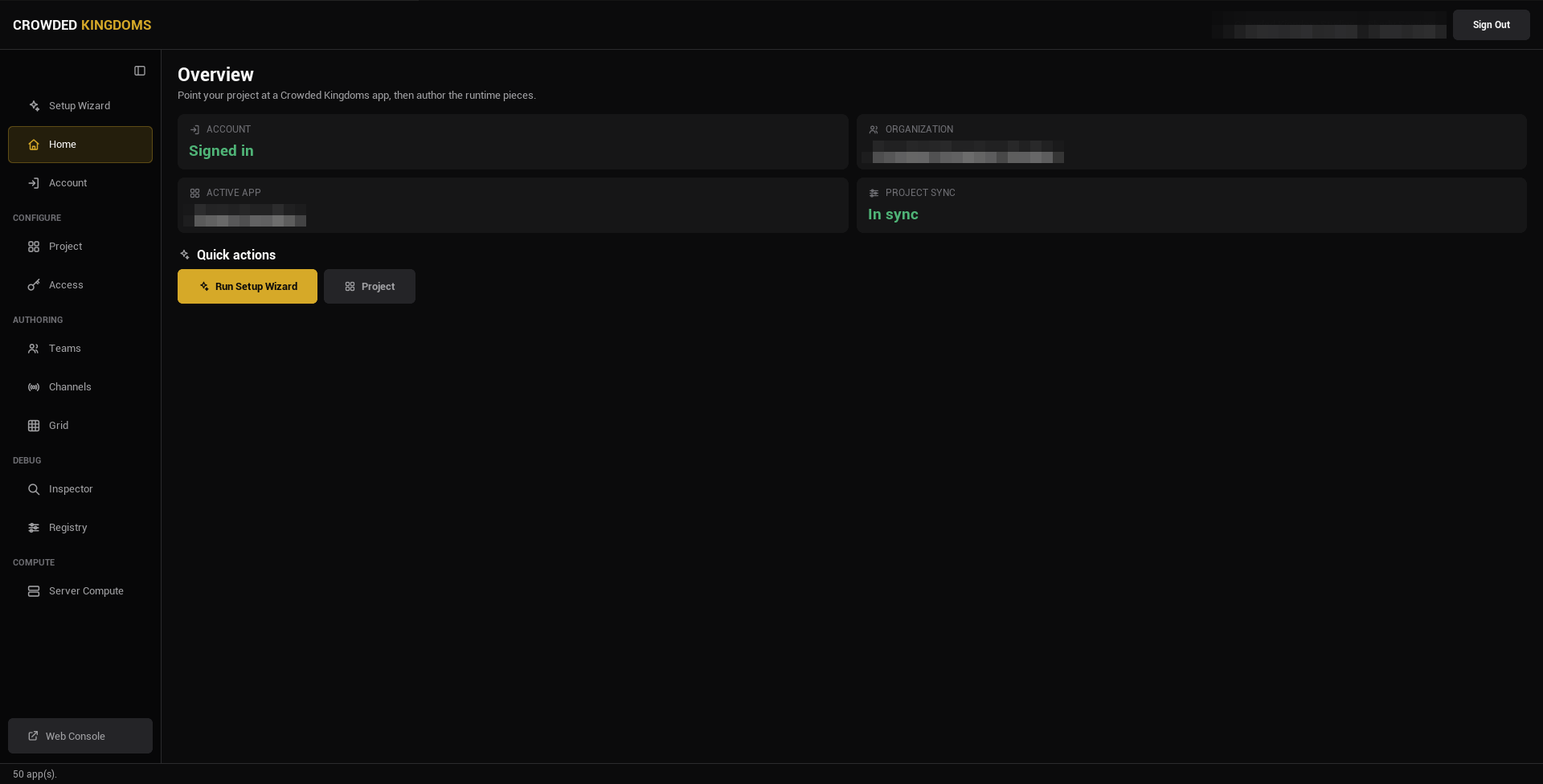
The sidebar on the left lists the pages. A toggle at the top folds it to icons (hover an icon for its label) and remembers your choice.
| Page | Group | Needs sign-in | What it is for |
|---|---|---|---|
| Setup Wizard | No | The guided first run: sign in, pick an app, sync. Studio lands here after you sign in. | |
| Home | Yes | Status cards: account, organization, active app, project sync. | |
| Account | Yes, with your account | Your own name, password and sessions; an organization token has no account of its own. See Your account. | |
| Project | CONFIGURE | Yes | Pick the app, create one, and run Config Sync. See Projects and Apps. |
| Access | CONFIGURE | Yes | The selected app's feature keys, and which access tiers grant each one. See The Access page. |
| Teams | AUTHORING | Yes | Author teams, members, roles, and the team policy. See Teams and Channels. |
| Channels | AUTHORING | Yes | Author named channels and the session channel. |
| Grid | AUTHORING | Yes | Author spatial permission regions. See Grids. |
| Inspector | DEBUG | No | A read-only view of a running Play in Editor session. See Inspector and Registry. |
| Registry | DEBUG | No | The baked metadata that ships in packaged builds, and the button that rebuilds it. |
| Server Compute | COMPUTE | Yes | Deploy your Server Object types and run them: versions, switching off and on, restarts. See Deploy it with Server Compute. |
| Web Console | Yes | Pinned at the bottom: opens the browser console for admin surfaces. |
The Access page
Access sits in the Configure group, under Project, and works on the app selected on the Project page. A feature is a key that server logic checks a player's access tier for (ctx.players().features(player), see World and platform data); the tiers themselves are created in the web console.
- The list on the left holds the app's features, with a search box. Each row shows the key, its description and how many tiers grant it.
- Select a feature to see every access tier on the right, marked GRANTED where it has the feature, with a Grant or Revoke button on each.
- Define feature opens a form for a new key and an optional description. A key is 1 to 64 letters, digits, underscores, hyphens and dots, the same rule a Server Object's Required Feature follows. Defining a key that exists updates its description.
The page loads its lists the first time you open it for the selected app, not when Studio starts. Press Refresh to read them again. Features work with a sign-in with your account or with an organization token. A Server Object function uses them through Required Feature.
From a script, -op=features, -op=definefeature, -op=grantfeature and -op=revokefeature do the same work; see Access, teams, channels and grids.
Signing in
Sign in with your account: email and password, a sign-in link sent by email, or a social provider. That gives you full authoring. An organization token gives management-only access: it can browse apps and run Config Sync, but not author teams, channels or grids. See Signing In.
Token sign-in is the usual cause.
Where to go next
- New project: sign in, then pick your app and run Config Sync.
- Building gameplay: Entities and Spawning.
- Shipping a build: Packaging, and rebuild the registry first.