Projects and Apps
An app is one Crowded Kingdoms backend application: it has an id, an organization, a datacenter, a status, a visibility, and Game API endpoints. Your project is this Unreal project. The Project page points the project at exactly one app, then Config Sync writes that app's ids and endpoints into it.
The Project page is a single split view: the app list on the left, the selected app's details and its Configuration and Connection tabs on the right.
The Project page
Open Crowdy Studio, sign in, and pick Project in the sidebar (the CONFIGURE group).
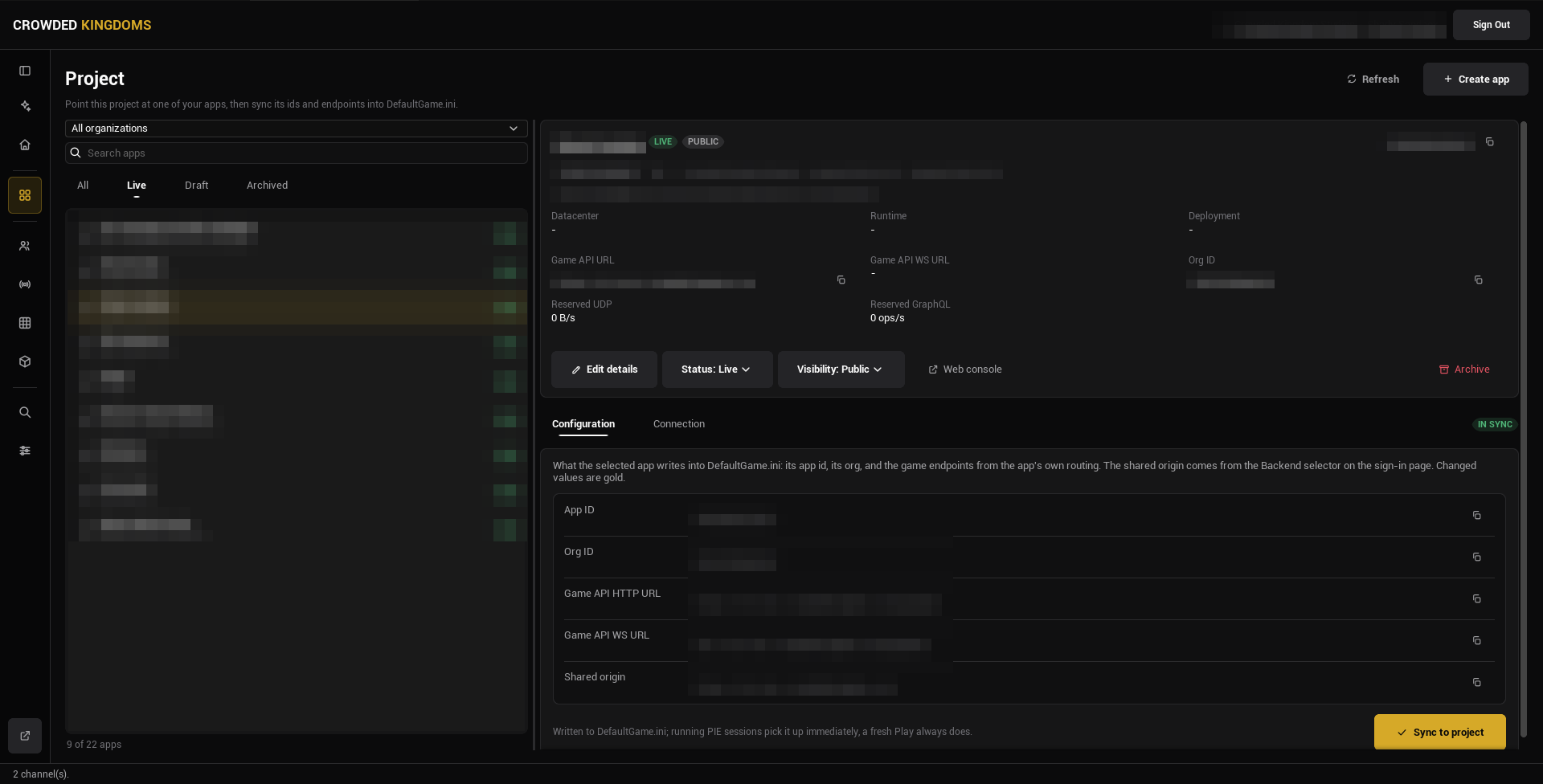
The left rail:
- An organization combo box, with All organizations at the top. This is a filter for the list; it does not by itself change which organization new resources are created in.
- A Search apps box.
- A status strip: All, Live, Draft, Archived. It opens on All.
- The app list, each row showing the app's name, its URL identifier, and its status. The count under the list says how many apps match, and how many free app slots the organization has used when one organization is selected.
It does not move where a new app is created until you also pick or create an app there.
Select an app and the right pane shows its details.
The app details
The header card shows the app's name, a status pill (Draft or Live), a visibility pill (Private, Unlisted, or Public), a copyable app id, a copyable URL identifier, the organization, and creation and update dates.
Below it, a fact grid: Datacenter, Runtime (the app's current runtime status), Deployment, Game API URL, Game API WS URL, Org ID, Reserved UDP (bytes per second), and Reserved GraphQL (operations per second).
The action row:
- Edit details: rename the app or change its description inline.
- Status: Draft or Live.
- Visibility: Private, Unlisted, or Public.
- Web console: opens the organization's Apps tab in the browser console.
- Archive: reversible.
Without it the controls are disabled. That is a permission on your account or token, not a Studio setting.
Under the details are two tabs, Configuration and Connection, which are the subject of Config Sync.
Create an app
Press Create app in the page header. It needs an organization to create in: pick one in the filter, or have an app of that organization selected. The dialog opens inside the page in two steps.
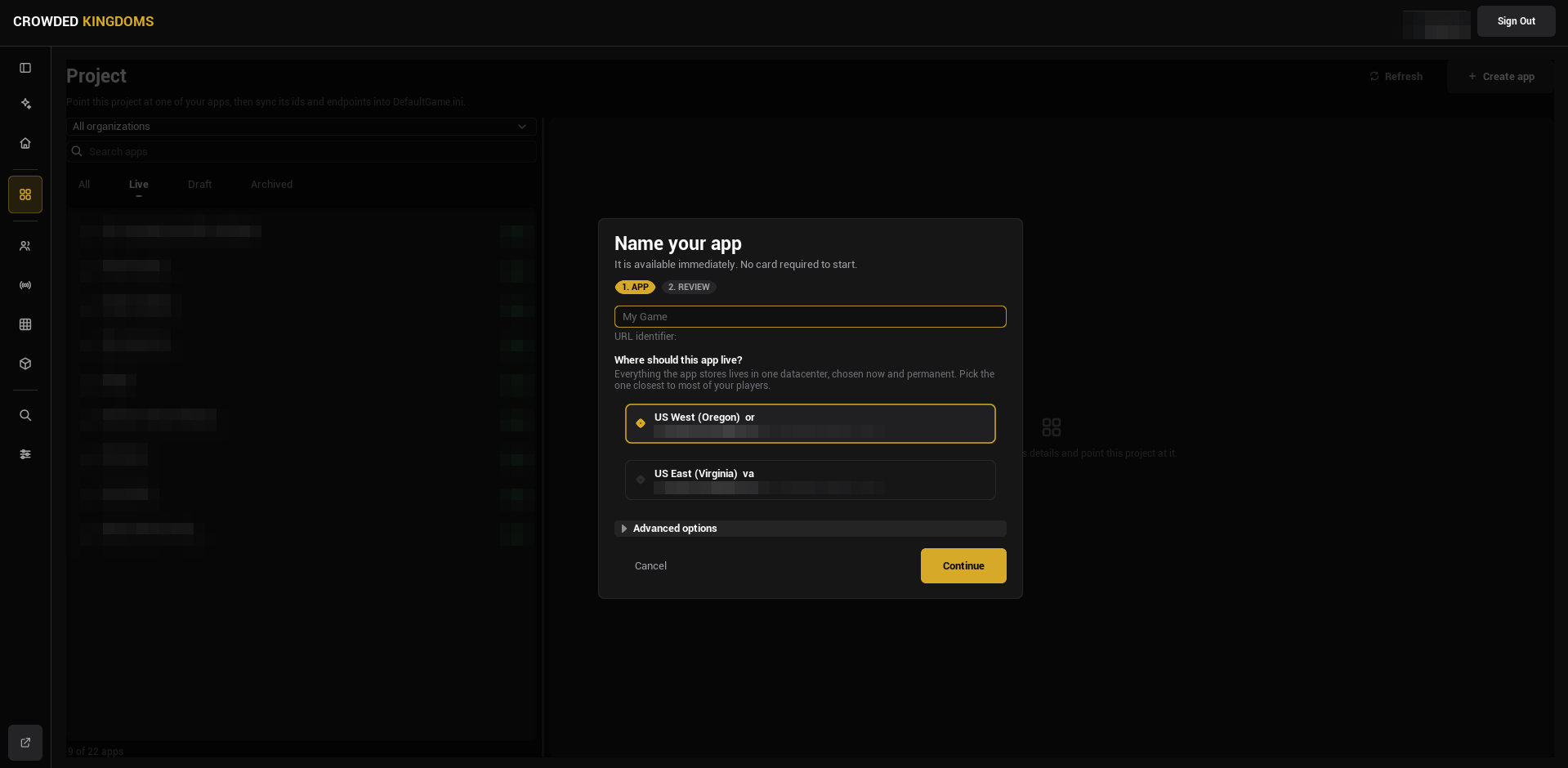
Step 1, Name your app. Type a name; the URL identifier (lowercase letters, digits, hyphens) is derived from it, and Advanced options lets you override it and add a description. Pick a datacenter card. The first available datacenter is preselected.
Step 2, Review. The name, identifier, and organization, the datacenter with its permanence notice, and the organization's free app slots. Press Create app. The Game API connection is available immediately; there is no provisioning wait.
Everything the app stores lives in that one datacenter. Pick the one closest to your players. Status and visibility are not asked at creation; the server defaults them and the details pane changes them afterwards.
Gotchas
- The organization filter and the selected app are separate things. Picking an app never changes the filter; picking an organization is remembered.
- The strip opens on All. Pick Draft to see only unpublished apps.
- The URL identifier must be lowercase letters, digits, and hyphens; the dialog refuses anything else.
- Archive is reversible, but an archived app disappears from Live and Draft. Look under Archived.
Related
- Config Sync: write the selected app into the project.
- Signing In: the account or token you need.
- Crowdy Studio overview.