Signing In
Crowdy Studio opens on its Sign In page. You sign in once; Studio remembers the session across editor launches until you sign out.
The sign-in page, top to bottom
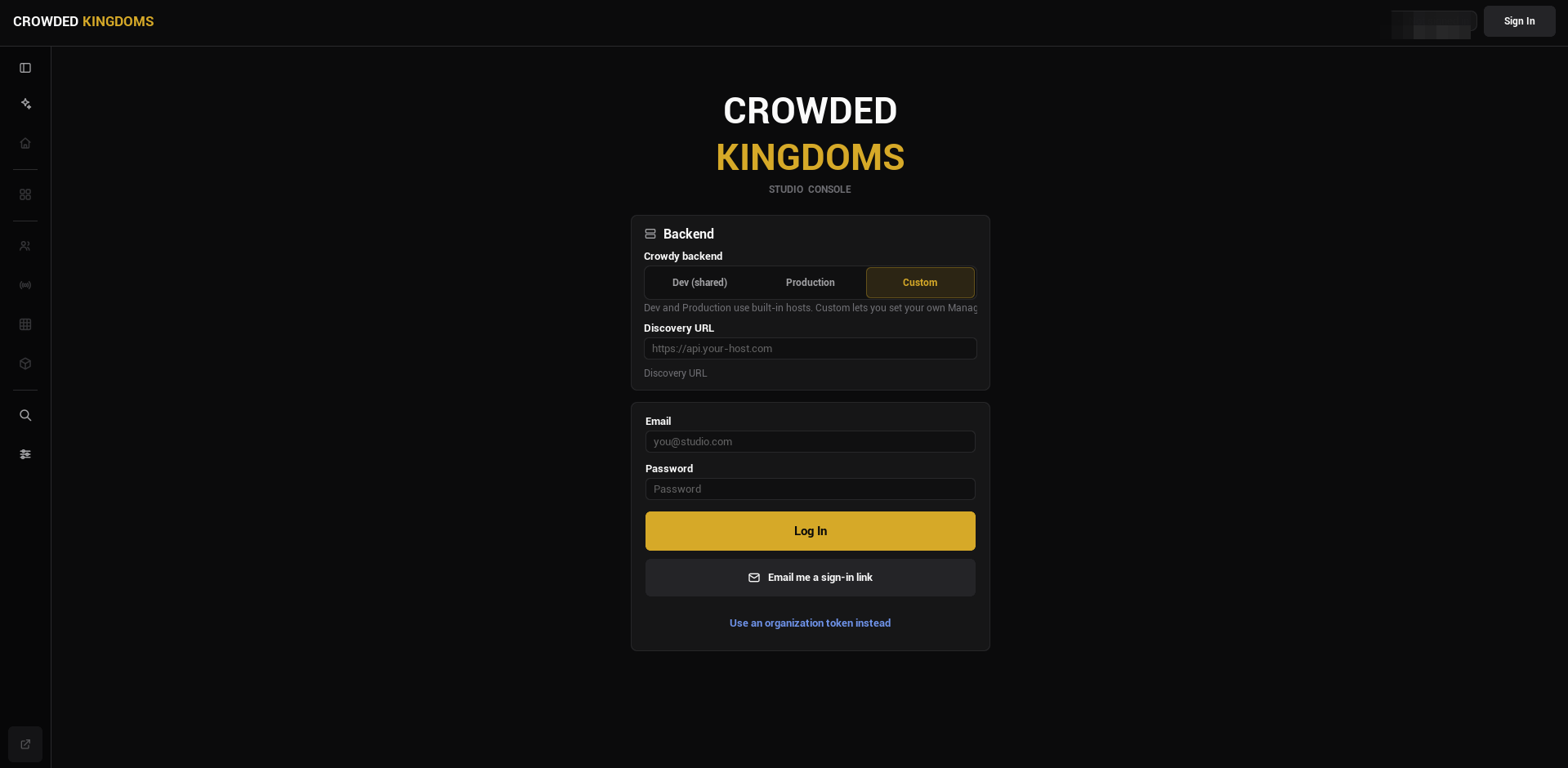
- Backend. A selector above the form. Leave it at its default unless Crowded Kingdoms told you otherwise.
- Continue with ... buttons, one per social provider your backend offers: Google, GitHub, Discord, Apple, or Microsoft. The section is hidden when none is offered. A provider sign-in opens your system browser, never an embedded web view, and returns to Studio when it completes.
- Email and Password, with Log In.
- Email me a sign-in link. Uses the email you typed above and sends a one-time link. Click the link in your mail client and this Studio window signs you in, no password needed.
- Use an organization token instead. A toggle at the bottom that reveals a token field and Sign In with Token.
Options 2, 3, and 4 are all account sign-ins and end in the same place: a session that can author everything.
What each credential grants
An account sign-in (email and password, a sign-in link, or a provider) gives you full authoring: Config Sync, teams, channels, grids, and the Web Console.
An organization token gives management-only access. It can browse apps, run Config Sync, and reach the Web Console, but it cannot author game-plane data.
Those pages need an account sign-in. If you signed in with a token and an authoring page looks read-only, sign out and sign in with your account. The token is the right choice for a build machine that syncs config and must not hold authoring credentials.
After a successful sign-in Studio lands on the Setup Wizard, so the guided path is the first thing you see.
Where the session is kept
Studio stores the signed-in session in a per-user file under your project's Saved/CrowdyStudio/ folder, never under Config/ and never in anything you would commit. The stored record remembers whether it was an account or a token sign-in, so a remembered account session comes back with its full authoring rights.
Treat the Saved folder on a shared macOS or Linux machine as you would a credential file.
Signing out
Press Sign Out in the Studio header. It clears the stored session, clears the Web Console's browser session too, and returns you to the Sign In page.
Gotchas
- The provider buttons come from the backend. A provider you expect but do not see is not enabled for that backend.
- A sign-in link arrives by email. Check the address you typed if nothing comes.
- Token sign-in is silent about what it cannot do until you open an authoring page. The page subtitle tells you it needs an account sign-in.
- The backend selector is remembered with the project. Changing it changes which servers Config Sync writes into the project.
Related
- Projects and Apps: pick or create the app after signing in.
- Config Sync: write the app's ids and endpoints into the project.
- Crowdy Studio overview: the sidebar and what needs a sign-in.