Teams and Channels
Teams group players together: guilds, parties, factions. Channels are named groups your runtime sends reliable events and messages over. Both live on the game server, and the Teams and Channels pages in Crowdy Studio author them ahead of play.
The same create, update, delete, role, and policy operations exist at runtime through UCrowdyTeams and UCrowdyChannels. Use Studio to set things up ahead of time or to do admin work in the editor; use the runtime APIs when your game creates teams or channels on the fly. The runtime side is on the Teams and Channels pages.
Sign in with your account (email and password, a sign-in link, or a provider). An organization token gives management-only access and these pages stay empty. The page subtitle says so when that is the case.
Open the pages
Open Crowdy Studio (Tools, Crowdy SDK, Crowdy Studio), sign in, and select your app on the Project page. Then pick Teams or Channels in the AUTHORING group of the sidebar. Press Refresh if the list is empty.
Teams
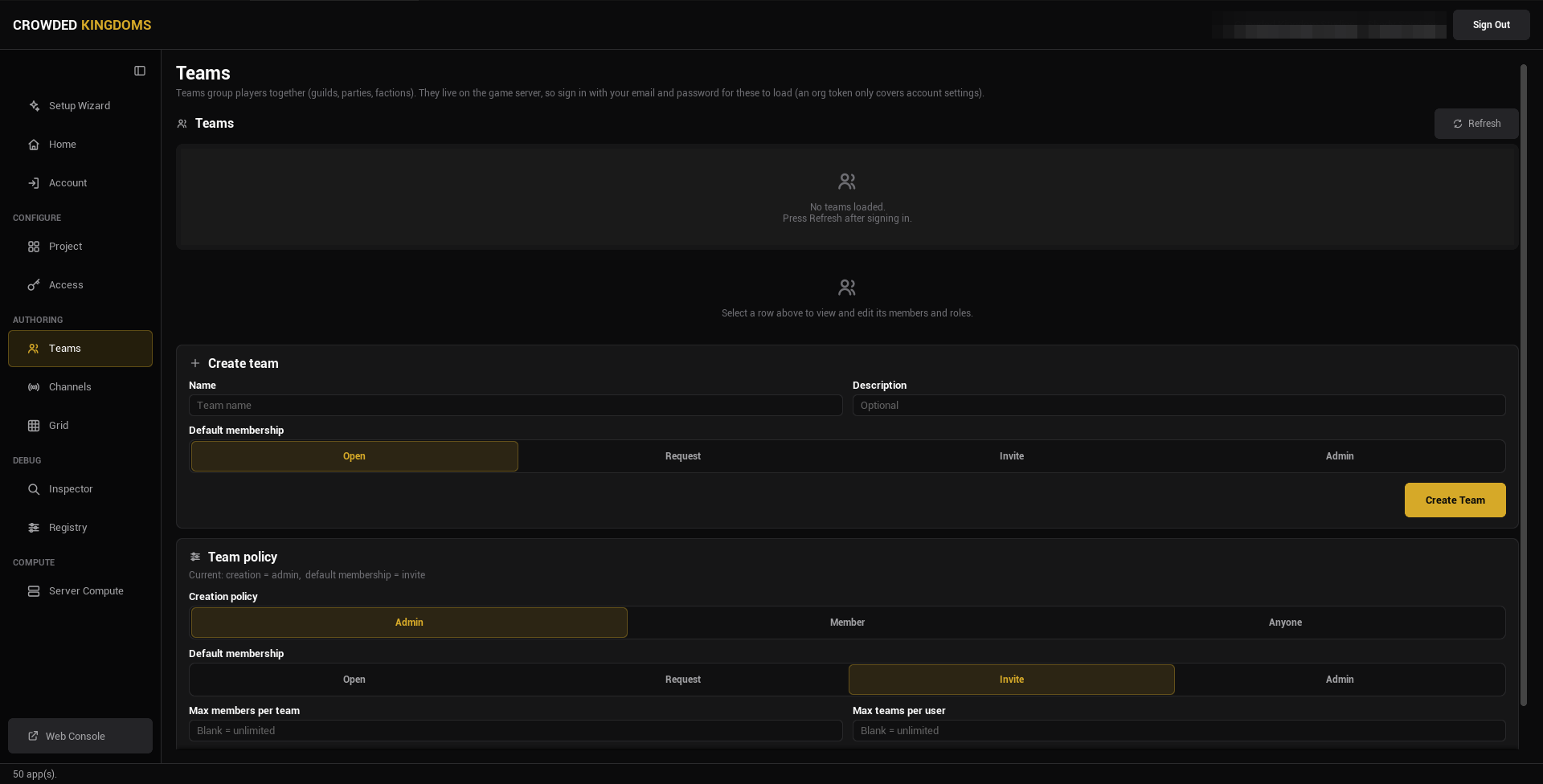
The page has three cards plus the detail view, top to bottom: the list, the detail view for the selected row, Create team, Team policy.
Teams. Every team in the app, one row each: the name, an id chip, the team's membership policy, and a status badge. Select a row to open its detail view.
Create team. A name, an optional description, and a Default membership choice (Open, Request, Invite, or Admin) that decides how players enter this team at runtime. Press Create Team and the row appears in the list.
Team policy. The app-wide rules for teams:
- Creation policy: who may create a team. Admin, Member, or Anyone.
- Default membership: the membership policy a new team starts with. Open, Request, Invite, or Admin.
- Max members per team and Max teams per user. Blank means unlimited.
Press Set Policy to write it. The current policy is echoed above the controls once loaded; before a Refresh it reads "Current policy not loaded".
Channels
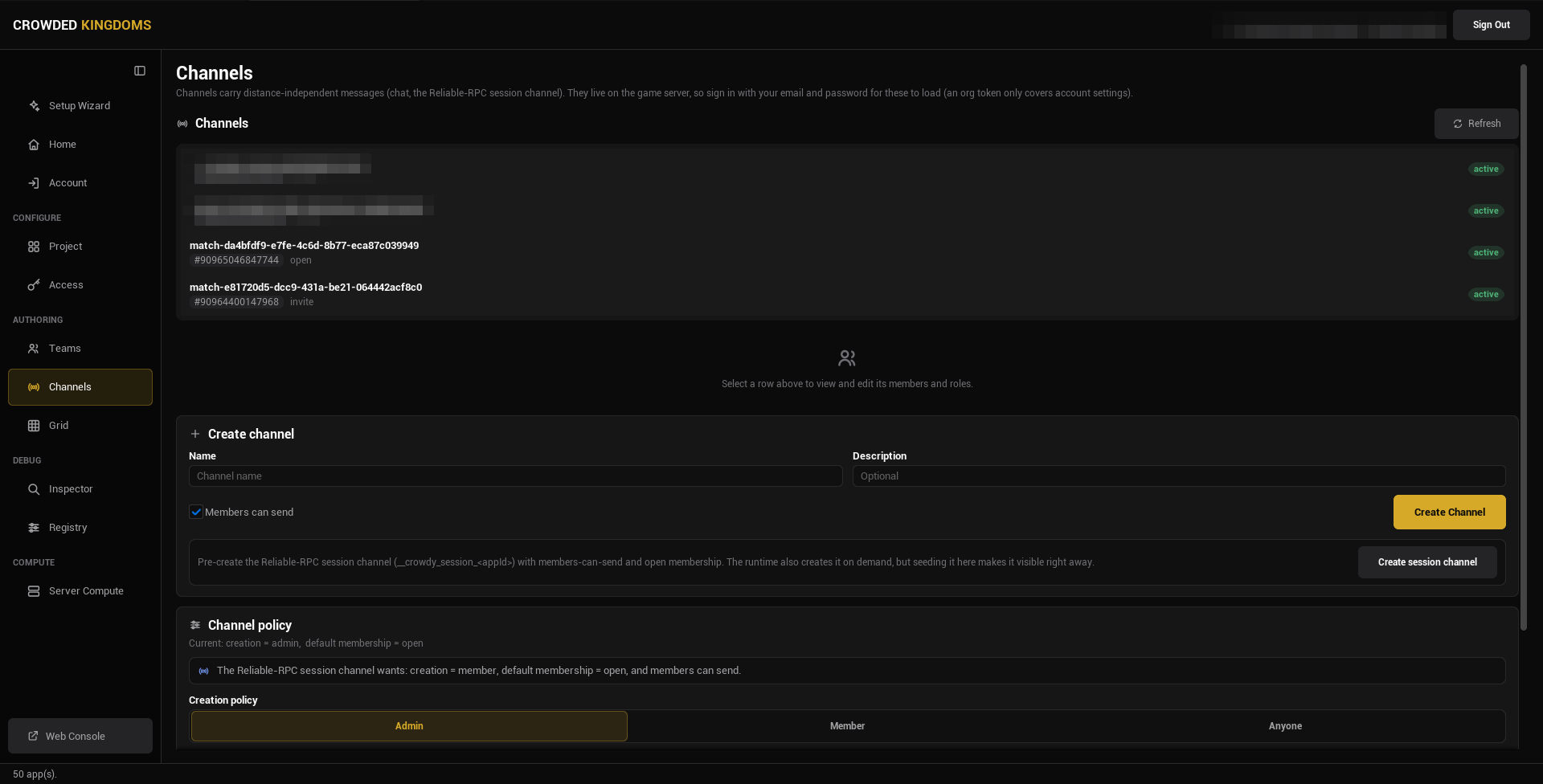
The Channels page mirrors Teams: a Channels list, a Create channel card with a name, a description, and a Members can send checkbox (on by default), and a Channel policy card with the same four settings as the team policy.
It is the value of the CrowdyChannel meta on a Multicast CrowdyEvent, and the target of a raw channel publish. Keep the name stable once code uses it.
The session channel
Every client of the app joins one reliable channel on connect, named __crowdy_session_<appId>. Multicast events with no channel named ride it. The runtime creates it on demand, so you never have to.
The Channels page has a Create session channel button that creates it ahead of time with the settings it wants: creation by members, open membership, members can send. The policy card repeats those three settings as a hint.
If you do not, the runtime still creates it the first time a client connects. Either way it behaves like any other channel you author here.
The detail view
Select a team or channel row and the detail view opens beneath the list. It is the same widget for both.
Edit team (or Edit channel): name, description (blank keeps the current one), a membership choice with Keep as the default, and Save Changes.
Members. Add a member by user id, remove one, and see who is in. A pending join request shows Approve and Reject; an active member shows Remove. Select a member to edit their roles.
Roles. A role is a named, ranked permission set you assign to members. Create one with a name, a rank (higher is more senior), and a checklist of the permissions its kind of group has. A team's are Manage Team, Manage Members, Manage Roles and Invite Members; a channel's are Send Messages, Manage Channel, Manage Members, Manage Roles and Invite Members. A role badged system (the leader role, for example) is read-only; a custom role can be edited and deleted.
The keys above decide who may manage the team or channel, who may invite to it and who may send on a channel. The spatial permission keys a grid checks (see Grids) are a separate catalog. A team can be granted grid permissions, but the two lists never mix.
Danger zone. Delete the whole team or channel. Deleting a team removes all its members and roles and revokes any grid grants it conferred, and it cannot be undone.
From the command line
A script can do the same work without the editor window: create and delete teams and channels, add and remove members, set roles, and write the policies. It needs a sign-in with your account, and every change needs -yes. The operations are listed under Access, teams, channels and grids on the Config Sync page.
What a policy is
A policy is four settings that apply to every team (or channel) in the app: who may create one, the membership policy a new one starts with, and two optional caps. A membership policy on an individual team or channel decides how a player gets in: Open (anyone joins), Request (a member approves), Invite (a member invites), or Admin. Runtime joins go through UCrowdyTeams::JoinTeam, and the server applies the policy you set here.
Gotchas
- Nothing loads until an app is selected on the Project page. The list stays empty otherwise.
- Refresh is manual. After another client changes a team at runtime, press it to see the change.
- Deleting a team also deletes its grid grants. Check the Grid page first if the team carried any.
- A
systemrole cannot be edited or deleted. Create acustomrole for anything you want to change later.